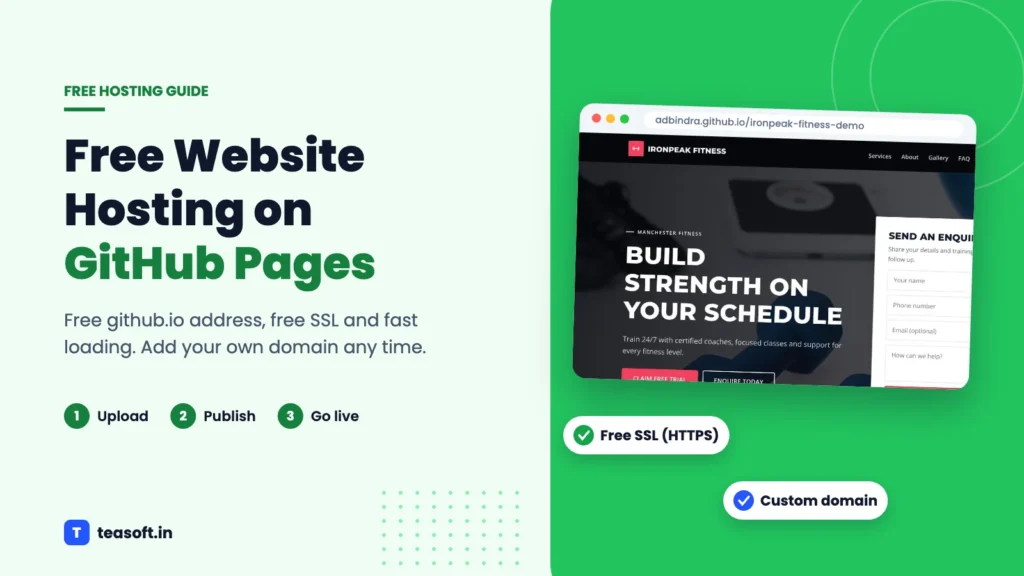
To host a website for free on GitHub Pages: create a free GitHub account, make a new public repository, upload your website with the home page named index.html, then go to Settings > Pages, choose Deploy from a branch, select main and /(root), and click Save. In a minute or two your site is live at username.github.io/repository-name with free HTTPS. You can add your own domain later under Custom domain.
Paying for hosting every month makes little sense for a simple website. If your site is plain HTML, like the pages made with Teasoft’s free AI Website Builder, GitHub Pages can host it for free, with a free address, a free SSL certificate and fast loading.
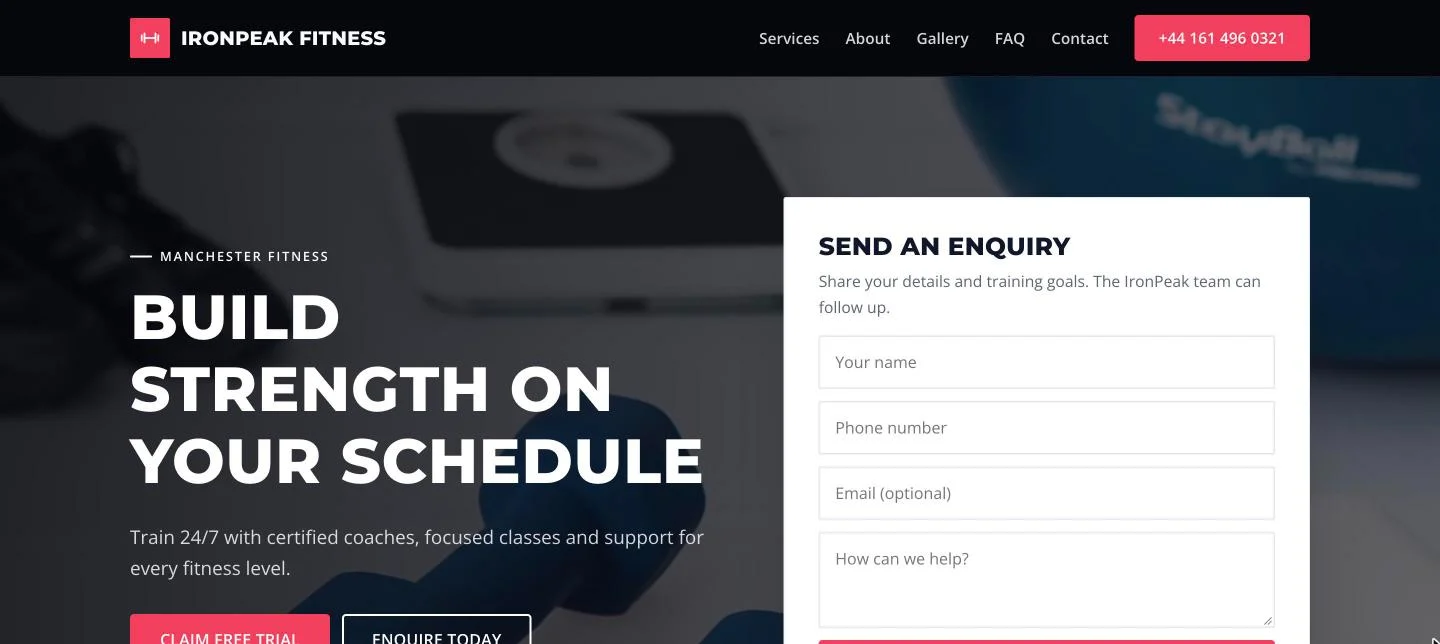
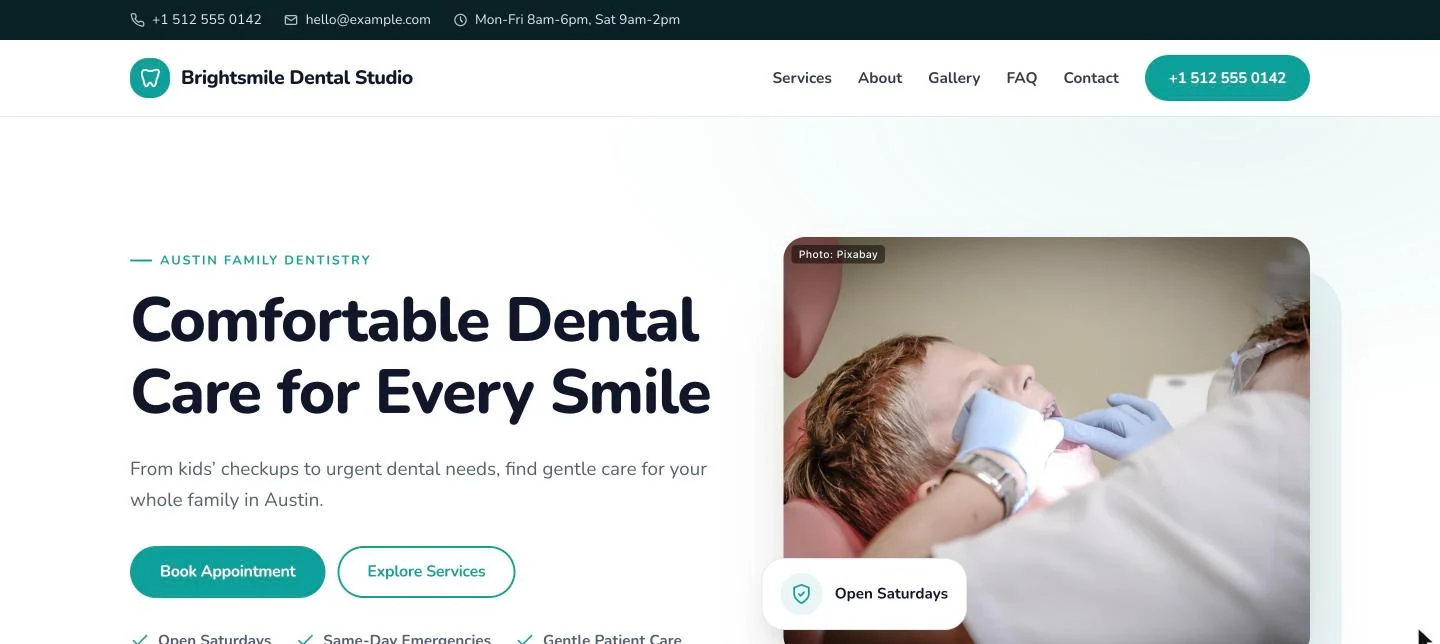
We followed every step below to publish two real demo websites. Open them to see the result: adbindra.github.io/brightsmile-dental-demo and adbindra.github.io/ironpeak-fitness-demo.
What You Get Free with GitHub Pages
| Feature | What you get |
|---|---|
| Hosting | Free for public repositories on a free GitHub account |
| Free address | username.github.io or username.github.io/repository-name |
| SSL (HTTPS) | Free and automatic on github.io, and free for custom domains too |
| Custom domain | Connect a domain you own, such as yourbusiness.com, and change it any time |
| Speed | Static HTML has no database or server code, so pages load fast |
| Updates | Upload a new file and your site updates automatically |
GitHub Pages Limits and Rules
GitHub Pages is generous for small websites, but it has limits worth knowing before you start:
- Static sites only: HTML, CSS, JavaScript and images. No PHP, databases or WordPress.
- Size: published sites can be up to 1 GB, and repositories are recommended to stay under 1 GB.
- Bandwidth: a soft limit of 100 GB per month, far more than a small business site uses.
- Builds: a soft limit of 10 builds per hour.
- Public repository: on a free account, the repository must be public, so anyone can see your site’s code.
- Not for online shops: GitHub says Pages isn’t meant to run an online business, e-commerce site or SaaS. It’s ideal for portfolios, landing pages, demos, event pages and small information sites.
- One-page business websites
- Landing pages and portfolios
- Free SSL and custom domains
- Sites that rarely change
- Online stores and payments
- WordPress or PHP sites
- Private code on a free plan
- Saving form data on the server
Step 1: Build Your Website and Download It
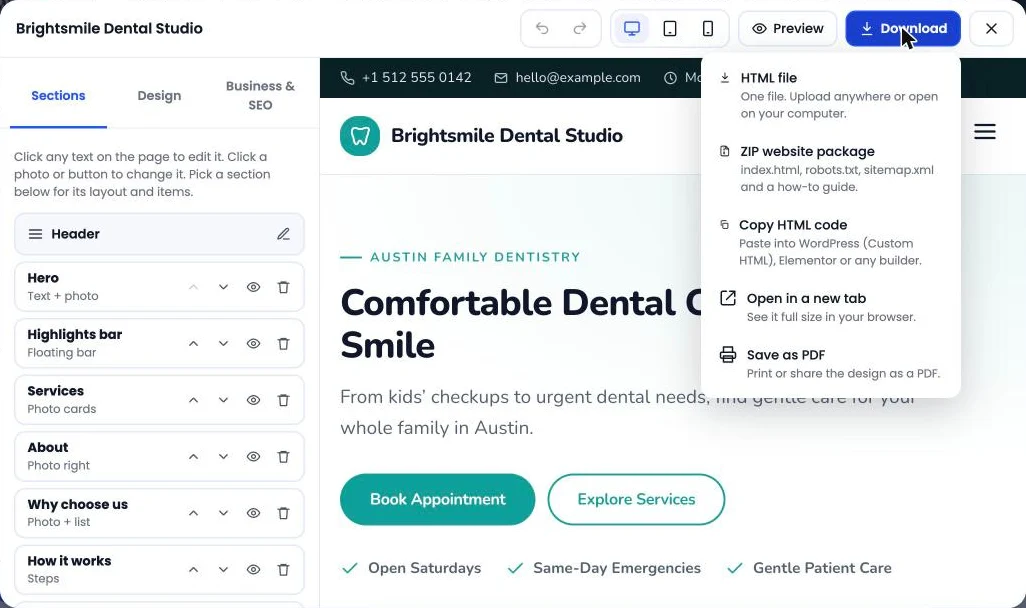
If you don’t have a website yet, create one free in a few minutes with the AI Website Builder. Our guide on how to build a free website with AI walks through every step. When you’re happy with it, click Download and choose either:
- HTML file: rename it to
index.htmlbefore uploading. - ZIP website package: unzip it on your computer. It already contains
index.html,robots.txtandsitemap.xml. - Copy HTML code: paste it straight into GitHub in Step 4, with nothing to download.
index.html (lowercase) and sit at the top level of the repository, not inside a folder. Otherwise you’ll see a 404 page.Step 2: Create a Free GitHub Account
Go to github.com and sign up with your email. Choose your username carefully: it becomes part of your free website address, for example adbindra.github.io. The free plan is all you need.
Step 3: Create a New Public Repository
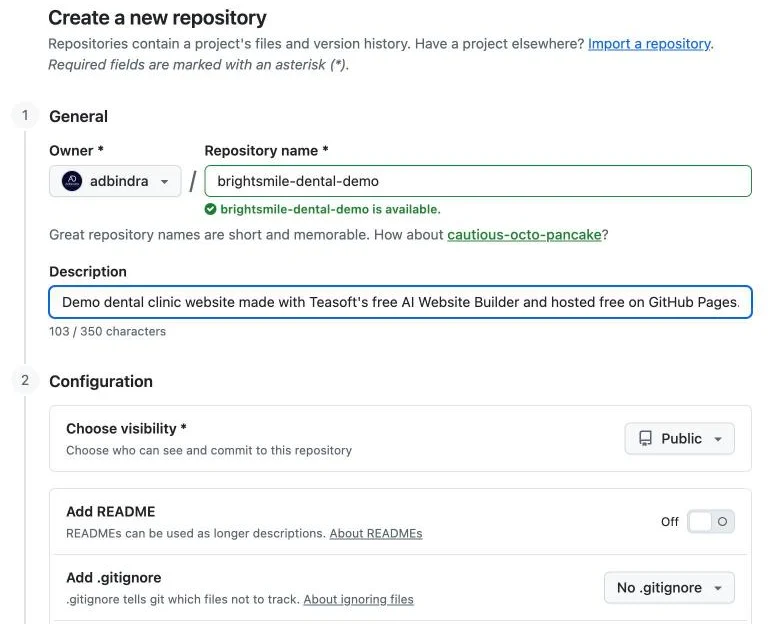
A repository (or “repo”) is a folder for your website on GitHub. Click the + icon at the top right and choose New repository.
- Repository name: use a short, readable name such as
brightsmile-dental-demo. It becomes part of your address. - Description: optional, one line about your site.
- Visibility: choose Public. Free accounts can only publish Pages sites from public repositories.
- Click Create repository.
username.github.io, using your own username. Your site then opens at https://username.github.io with no folder name after it. You get one of these per account; every other repository uses username.github.io/repository-name.Step 4: Upload Your Website Files
Your new repository is empty. Under Quick setup, you’ll see two links: creating a new file and uploading an existing file.
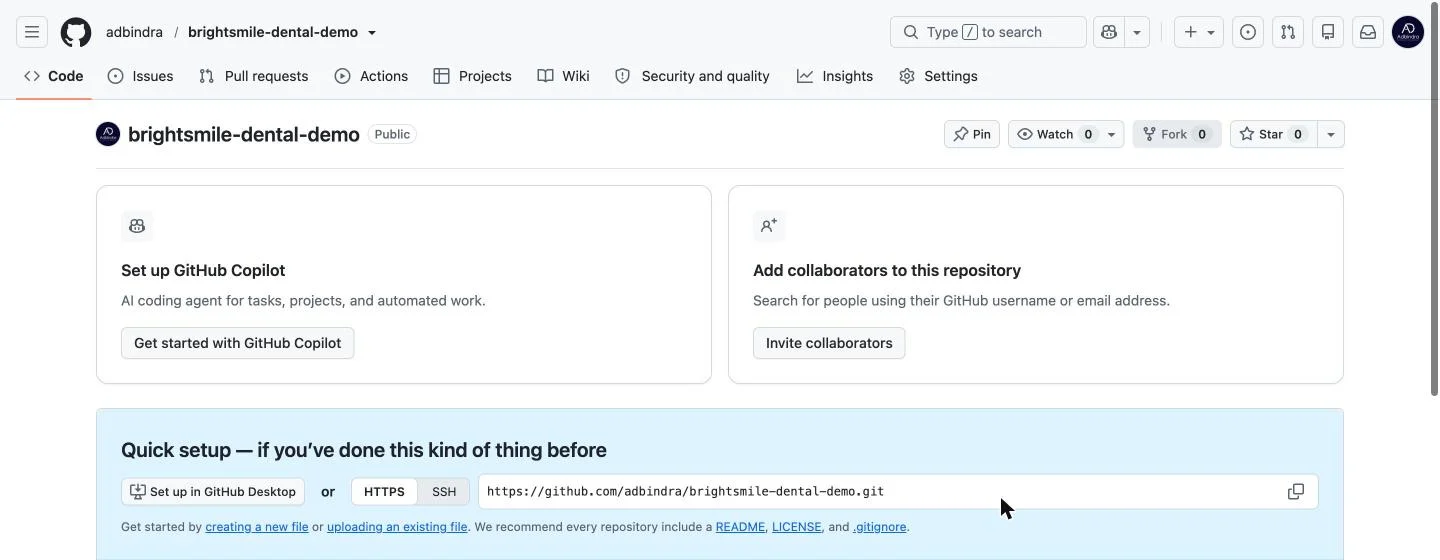
Option A: Upload files (HTML file or ZIP)
- Click uploading an existing file.
- Drag
index.html(androbots.txtandsitemap.xmlif you used the ZIP) into the box. Drag the files themselves, not the folder they are in. - Click Commit changes.
Option B: Paste the HTML code
- In the AI Website Builder, click Download > Copy HTML code.
- On GitHub, click creating a new file.
- Type
index.htmlas the file name, then paste the code into the editor. - Click Commit changes, then Commit changes again in the popup.
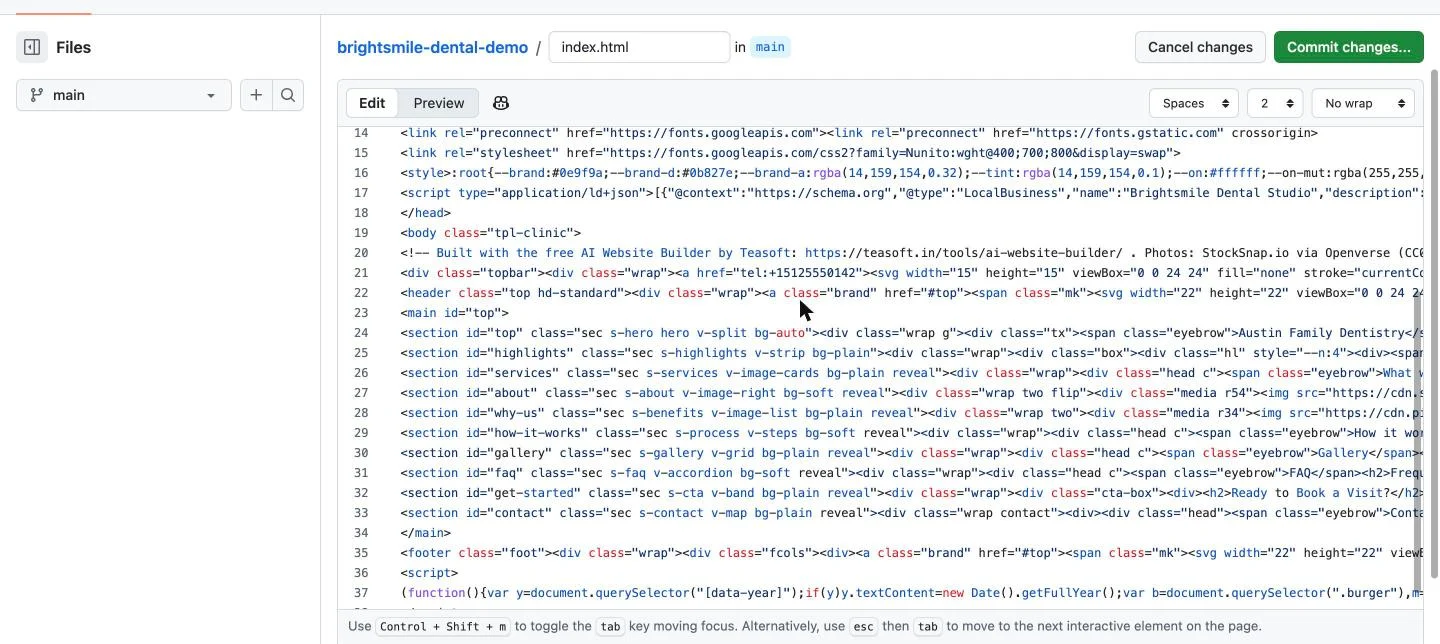
Step 5: Turn On GitHub Pages
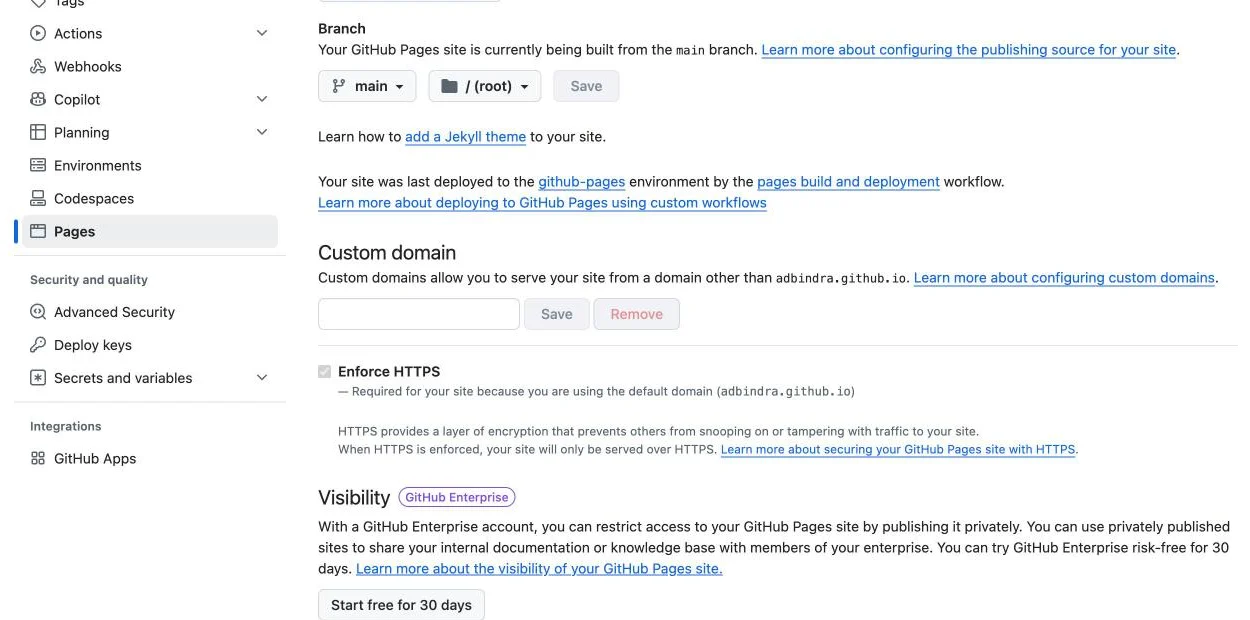
- In your repository, click Settings, then Pages in the left menu.
- Under Build and deployment, set Source to Deploy from a branch.
- Under Branch, choose main and / (root).
- Click Save.
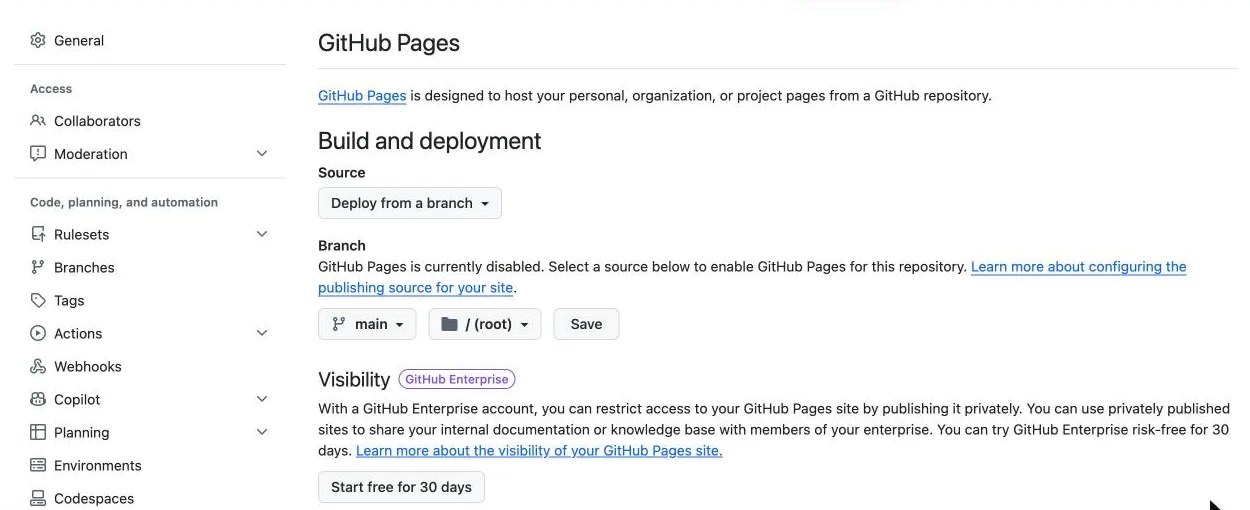
Step 6: Open Your Free Website
GitHub builds your site in the background. After a minute or two, refresh the Pages settings and you’ll see Your site is live at with your address and a Visit site button.
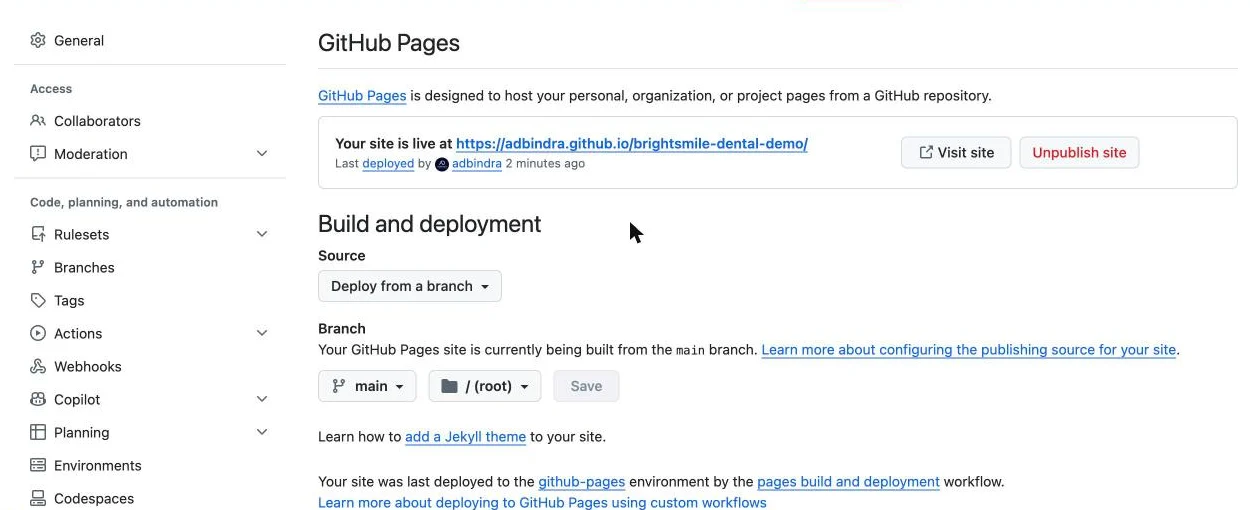
Your free address depends on the repository name:
| Repository name | Free website address |
|---|---|
username.github.io | https://username.github.io/ |
brightsmile-dental-demo | https://username.github.io/brightsmile-dental-demo/ |
| Any repository with a custom domain | https://www.yourbusiness.com/ |
Step 7: Add a Custom Domain to GitHub Pages
The free github.io address works well, but your own domain, such as yourbusiness.com, looks more professional and is easier to remember. GitHub Pages lets you connect a domain you own for free. Buy a domain from any registrar, then follow these steps.
1. Verify your domain (recommended)
Verifying stops anyone else from using your domain on GitHub. Click your profile picture, then Settings > Pages > Add a domain. GitHub shows a TXT record named like _github-pages-challenge-username.yourbusiness.com. Add it at your domain registrar, wait for it to update, then click Verify. Keep the TXT record in place afterwards.
2. Enter the domain in the Custom domain field
In your repository, go to Settings > Pages. Under Custom domain, type your domain (for example www.yourbusiness.com or yourbusiness.com) and click Save. GitHub adds a file named CNAME to your repository with your domain in it; leave that file in place. Add the domain on GitHub before you change your DNS.
3. Point your DNS to GitHub
At your domain registrar, open the DNS settings and add these records:
| Type | Name / Host | Value |
|---|---|---|
| A | @ | 185.199.108.153 |
| A | @ | 185.199.109.153 |
| A | @ | 185.199.110.153 |
| A | @ | 185.199.111.153 |
| AAAA (optional, IPv6) | @ | 2606:50c0:8000::153, 2606:50c0:8001::153, 2606:50c0:8002::153, 2606:50c0:8003::153 |
| CNAME | www | username.github.io (your username, without the repository name) |
Remove any old A records for @ that point to another host. DNS changes can take up to 24 hours. When they finish, GitHub shows a check mark next to your domain, and both yourbusiness.com and www.yourbusiness.com open your site.
*.yourbusiness.com. GitHub warns they can let someone else take over your subdomains.4. Change or remove your domain later
To switch to a different domain, type the new one in Custom domain, click Save and point the new domain’s DNS to GitHub as above. To go back to the free github.io address, click Remove. Your website files stay the same either way.
Step 8: Turn On Free SSL (HTTPS)
On a github.io address, HTTPS is already on and can’t be turned off. With a custom domain, GitHub requests a free certificate from Let’s Encrypt once your DNS is working. When it’s ready, tick Enforce HTTPS in Settings > Pages so every visitor gets the secure version.
If Enforce HTTPS stays greyed out for a long time, your DNS may still be updating. If it’s still stuck after DNS has finished, remove the custom domain, add it again and click Save to restart the certificate.
How to Keep Your Free Website Fast
- Use small images. Compress photos to WebP or under 200 KB with our free image converter and compressor before uploading them.
- Upload images to your repository. Put photos in the repo and link to them, so they load from the same fast server as your page.
- Keep it to one HTML file where you can. AI Website Builder pages already include all CSS inside index.html.
- Always link with https:// so browsers don’t block images or scripts as mixed content.
How to Update Your Website Later
Edit your page in the AI Website Builder (use Open last page), then upload the new index.html to the same repository with Add file > Upload files. Uploading a file with the same name replaces the old one. You can also open index.html on GitHub, click the pencil icon, edit and commit. Changes usually appear within a few minutes; refresh with Ctrl+F5 (Cmd+Shift+R on Mac) if you still see the old version.
SEO After Publishing
- Add a canonical link in index.html pointing to your final address (github.io or your domain).
- Update sitemap.xml with your real address and submit it in Google Search Console.
- robots.txt only works at the root of a domain. It’s read on
username.github.ioor your custom domain, but not inside a repository folder like/brightsmile-dental-demo/. - Add your website to your Google Business Profile and social profiles.
For AI search engines too, see how to get your website found in ChatGPT, Gemini and Google AI Overviews.
Troubleshooting
| Problem | Fix |
|---|---|
| 404 “There isn’t a GitHub Pages site here” | Wait 1 to 2 minutes after saving. Check that the file is named index.html and sits at the top level, and that Pages uses main and / (root). |
| Old version still showing | Wait a few minutes, then hard refresh with Ctrl+F5 or Cmd+Shift+R. |
| Images not loading | Check file names match exactly, including capital letters, and that links use https://. |
| Enforce HTTPS greyed out | DNS is still updating. Wait up to 24 hours, then remove and re-add the custom domain. |
| Custom domain not working | Check the four A records and the www CNAME, remove old A records that point elsewhere, and make sure the CNAME file is still in your repository. |
Live Demos Hosted on GitHub Pages
Brightsmile Dental Studio
IronPeak Fitness
Frequently Asked Questions
Is GitHub Pages really free?
Yes. GitHub Pages is free for public repositories on a free GitHub account, including a github.io address and HTTPS. You only pay if you buy your own domain name from a registrar.
How do I host a website on GitHub for free?
Create a public repository, upload your website with the home page named index.html, then go to Settings, Pages, choose Deploy from a branch, select main and / (root) and click Save. Your site goes live at username.github.io/repository-name.
Does GitHub Pages give free SSL?
Yes. github.io sites use HTTPS automatically. For a custom domain, GitHub gets a free Let’s Encrypt certificate once your DNS is set up, and you can tick Enforce HTTPS in Settings, Pages.
How do I add a custom domain to GitHub Pages?
In your repository, go to Settings, Pages, type your domain under Custom domain and click Save. Then, at your registrar, add four A records for the root domain (185.199.108.153, 185.199.109.153, 185.199.110.153 and 185.199.111.153) and a CNAME record for www pointing to username.github.io. You can change to a different domain later.
How long does it take for a GitHub Pages site to go live?
Usually a minute or two after you save the Pages settings. A custom domain can take up to 24 hours while DNS updates.
Can I host a business website on GitHub Pages?
A simple information or landing page for a business is a common use. GitHub says Pages isn’t intended for running an online business, e-commerce or SaaS, so use a paid host for online stores and payments.
Can I host WordPress on GitHub Pages?
No. GitHub Pages only hosts static files such as HTML, CSS, JavaScript and images. It can’t run PHP or databases, so WordPress needs regular web hosting.
Why does my GitHub Pages site show a 404 error?
Usually the home page isn’t named index.html, it’s inside a folder, or the site is still building. Check the file name and location, confirm Pages is set to main and / (root), and wait a minute.
How much traffic can GitHub Pages handle?
GitHub Pages has a soft bandwidth limit of 100 GB per month and a 1 GB site size limit, which is plenty for a small business website or landing page.
No website yet? Make one free in a minute
Describe your business and the AI Website Builder creates a complete landing page or one-page website, ready to host on GitHub Pages.