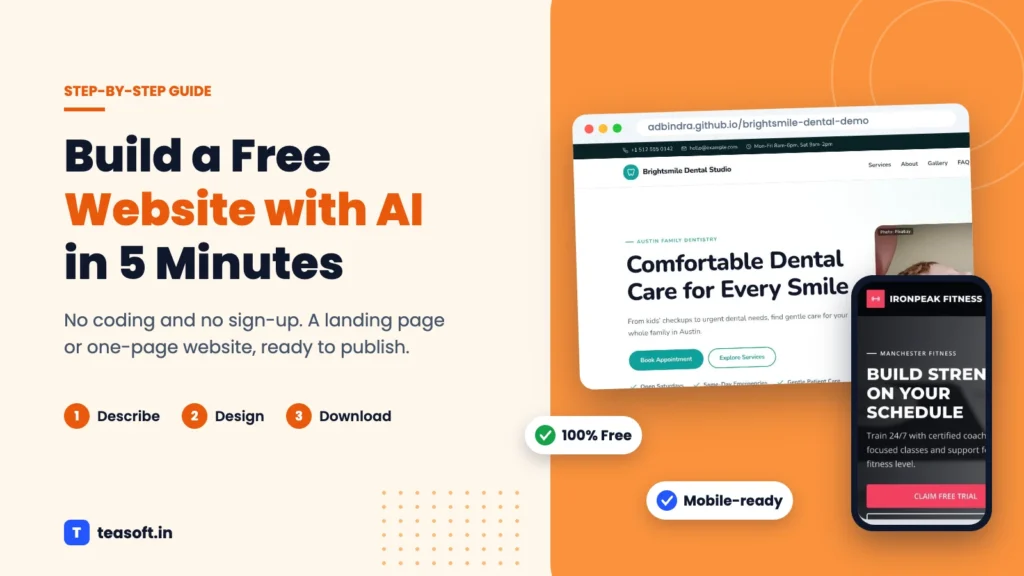
To build a free website with AI, open Teasoft’s AI Website Builder and complete four steps: describe your business, choose a goal and page type (landing page or one-page website), pick a design, then add your contact details and click Generate my website. In about a minute you get a complete, mobile-friendly page with your text, photos, FAQs and an enquiry form. Edit anything, click Preview, then download it as an HTML file or ZIP and publish it for free, for example on GitHub Pages. No coding, no sign-up and no monthly fee.
Most small businesses don’t need a 20-page website. They need one good page that explains what they do, shows a few photos, answers common questions and makes it easy to call, WhatsApp or book. Website builders usually charge a monthly fee for that, and hiring a designer takes days.
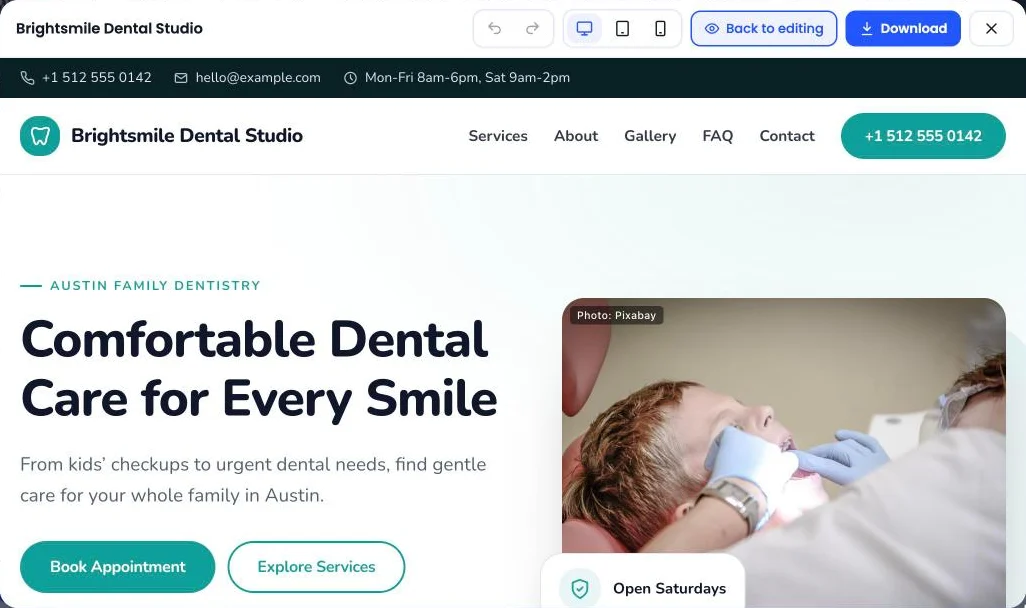
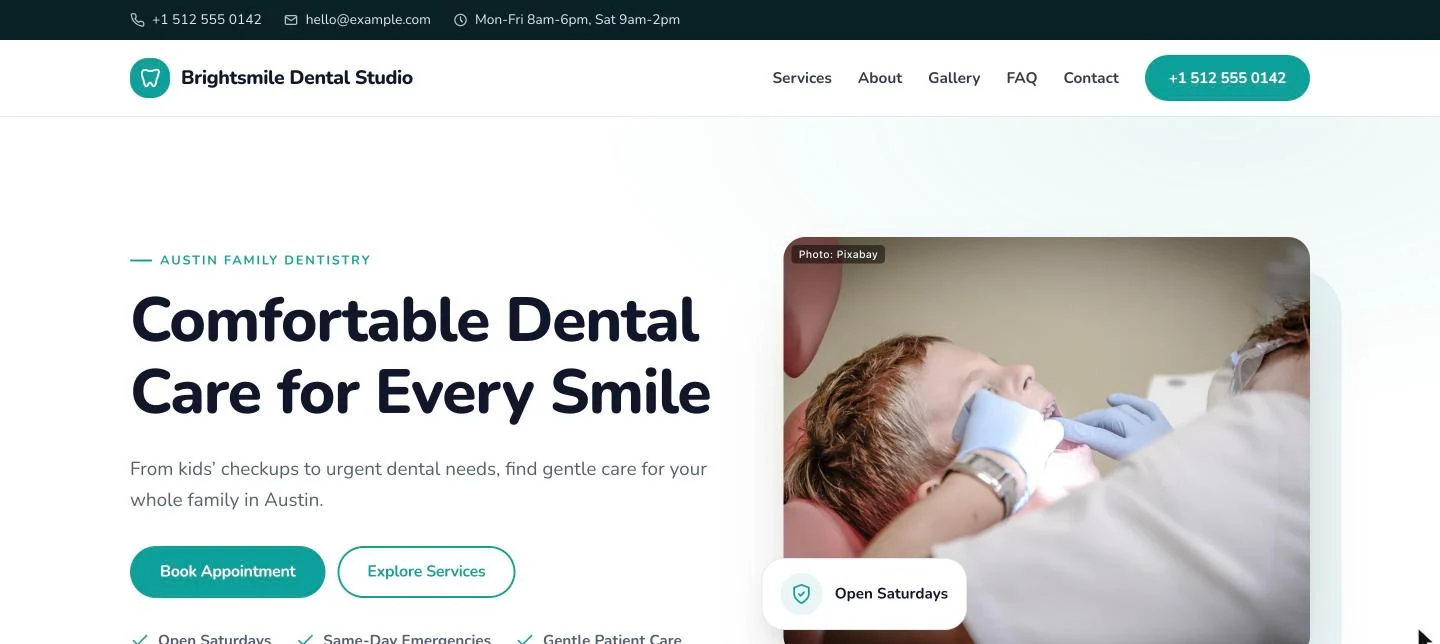
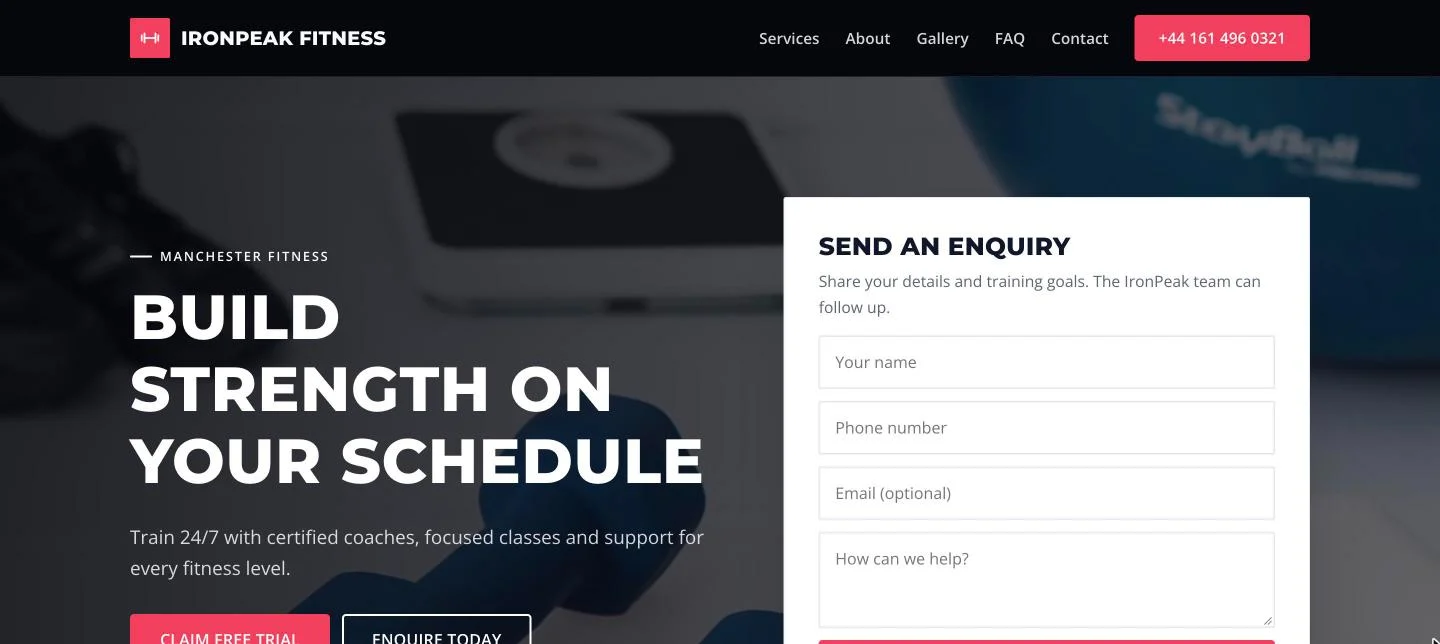
In this guide you’ll create that page yourself with a free AI website builder, step by step, with real screenshots. We built two demo websites while writing it, a dental clinic website and a gym landing page, and published both for free. You can open them to see exactly what you’ll get.
What You Need Before You Start
You don’t need an account, a domain or any design skills. Have these ready and the AI will write much better text for you:
- Business name and type, for example “Brightsmile Dental Studio, dental clinic”.
- City or area you serve, so the page mentions it (good for local search).
- Your main services or products, one per line.
- What makes you different, such as “Open Saturdays” or “Free first consultation”.
- Contact details: phone, WhatsApp, email, address and opening hours.
Landing Page or One-Page Website: Which Should You Make?
The builder makes both. The difference is where the enquiry form sits and what the page is for.
| Landing page | One-page website | |
|---|---|---|
| Best for | Google or Meta ads, offers, campaigns | Your main business website |
| Enquiry form | At the top, next to the headline | Near the bottom, in Contact |
| Sections | Fewer, focused on one action | Services, about, gallery, FAQ, contact |
| Example | Gym free-trial page | Dental clinic website |
How to Create a Free Website with AI (Step by Step)
Open the AI Website Builder. The form has four steps, and the Generate my website button unlocks when all four are complete.
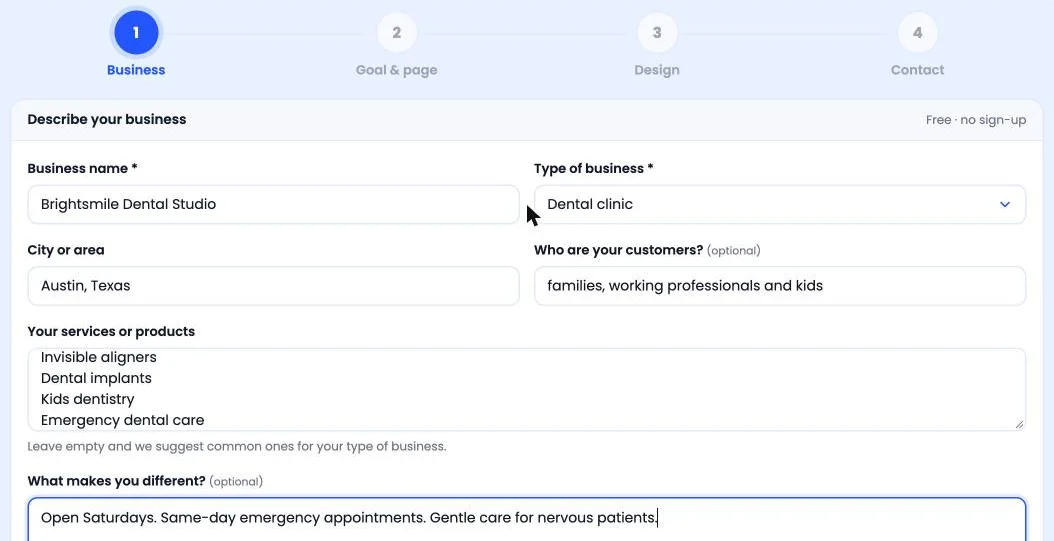
Step 1: Describe your business
Enter your business name, choose the type of business (there are 25 business types to choose from), and add your city. Add your services one per line, or leave the box empty and the builder suggests common services for your type of business. Finish with what makes you different.
Step 2: Choose your goal and page type
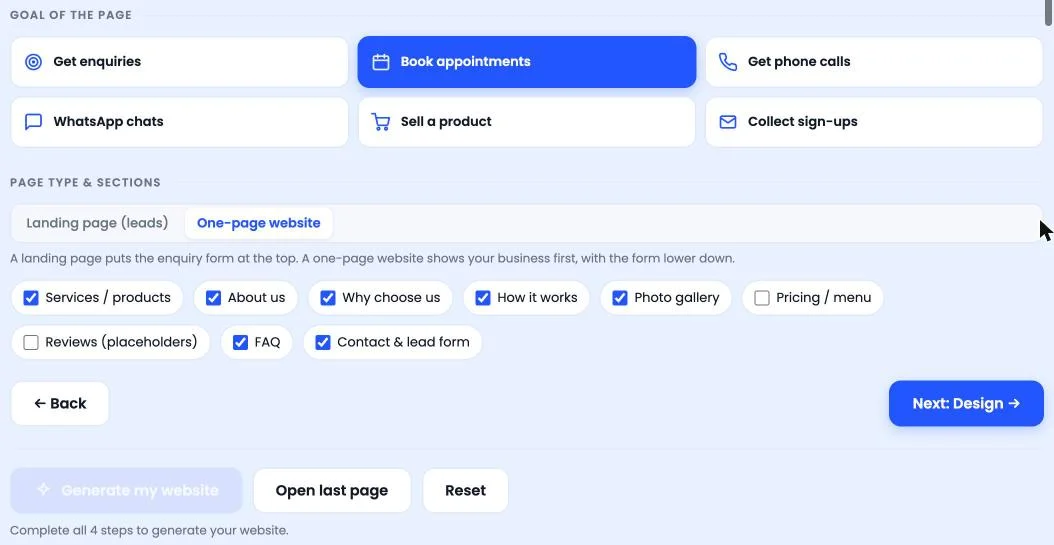
Pick the one thing you want visitors to do: get enquiries, book appointments, get phone calls, start WhatsApp chats, sell a product or collect sign-ups. This sets your main button and form. Then choose Landing page or One-page website and tick the sections you want, such as services, about us, why choose us, how it works, photo gallery, pricing, reviews, FAQ and contact.
Step 3: Pick a design
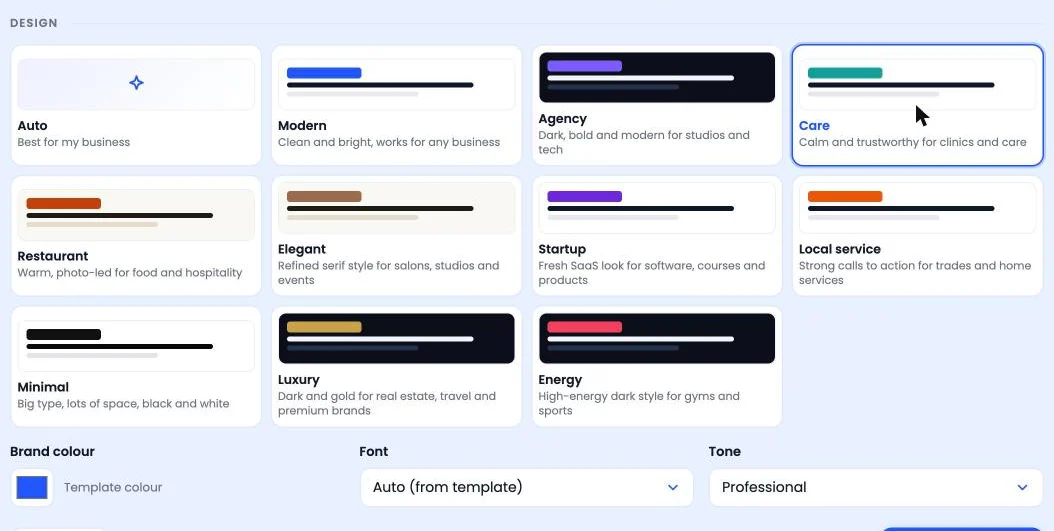
Choose one of 10 templates: Modern, Agency, Care, Restaurant, Elegant, Startup, Local service, Minimal, Luxury or Energy. Not sure? Leave it on Auto and the builder picks one that suits your business. You can also set your brand colour, font and tone of voice. All of these can be changed later.
Step 4: Add contact details and generate
Add your phone, WhatsApp, email, address, opening hours and social links. These become call and WhatsApp buttons, a contact section and a map. Use Anything else? for offers or notes, such as “Free first check-up for new patients”. Then click Generate my website.
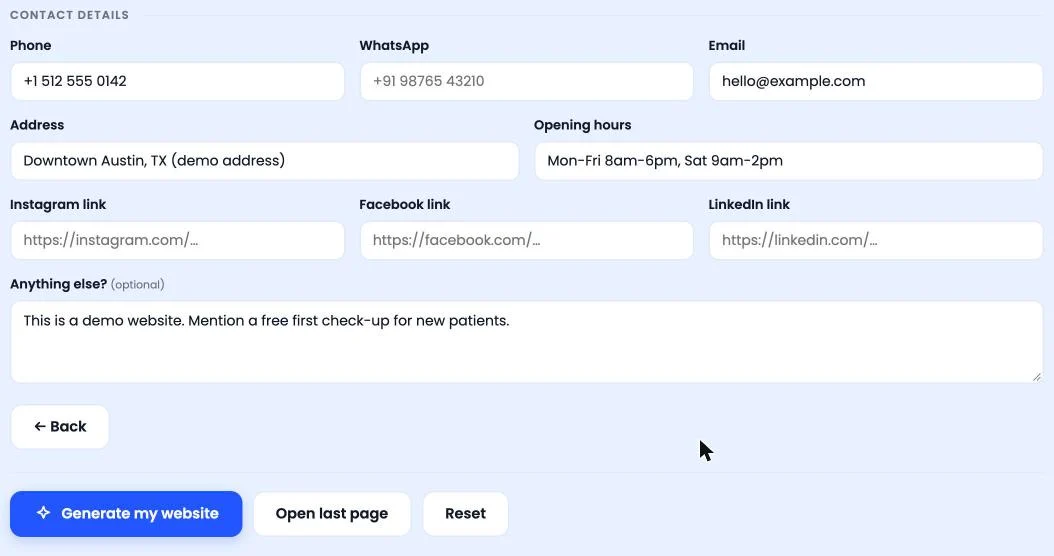
The AI writes your headline, services, benefits, steps and FAQs, finds matching free stock photos and designs the layout. It usually takes 10 to 60 seconds.
Step 5: Edit your page
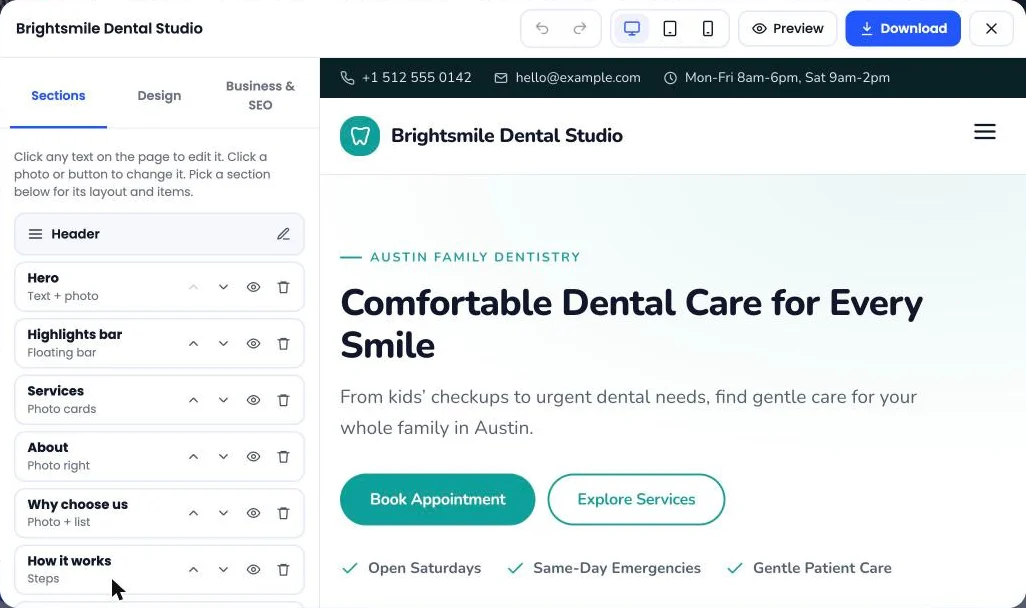
Your website opens in the editor. Click any text on the page to change it, and click a photo or button to replace it. In the left panel you can:
- Sections: move sections up or down, hide or delete them, add new ones and switch each section’s layout.
- Design: change the template, colours and fonts in one click.
- Business & SEO: update contact details, the page title and the meta description used by Google.
Swap stock photos for your own photos where you can. Real photos of your team and premises build more trust.
Step 6: Click Preview and check on mobile
Click Preview at the top to hide the editing panel and see your website full width, exactly as visitors will see it. Click Back to editing to make more changes.
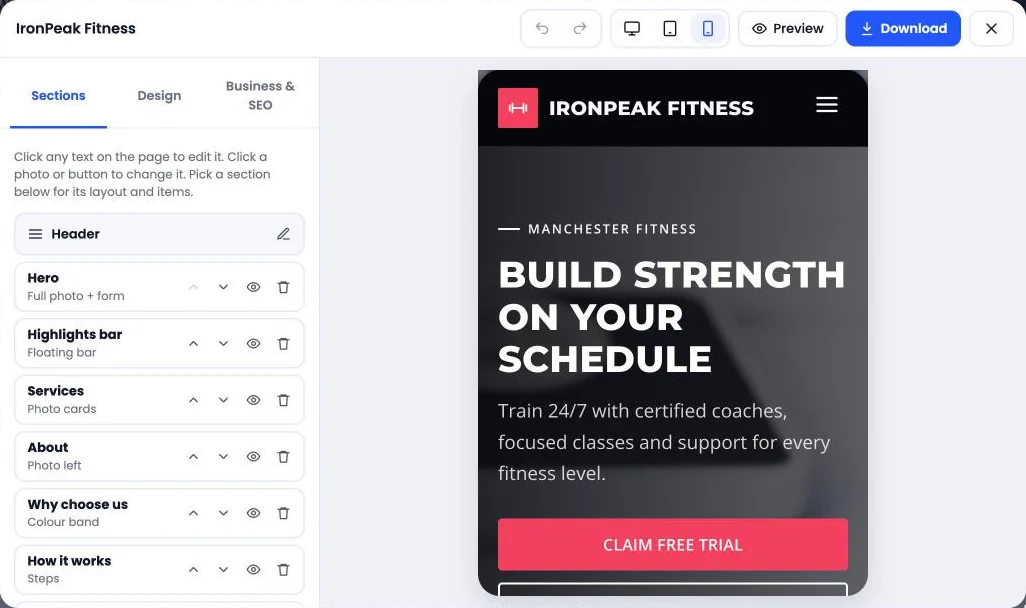
Most visitors will open your website on a phone, so use the tablet and mobile icons next to Preview to check every section on smaller screens.
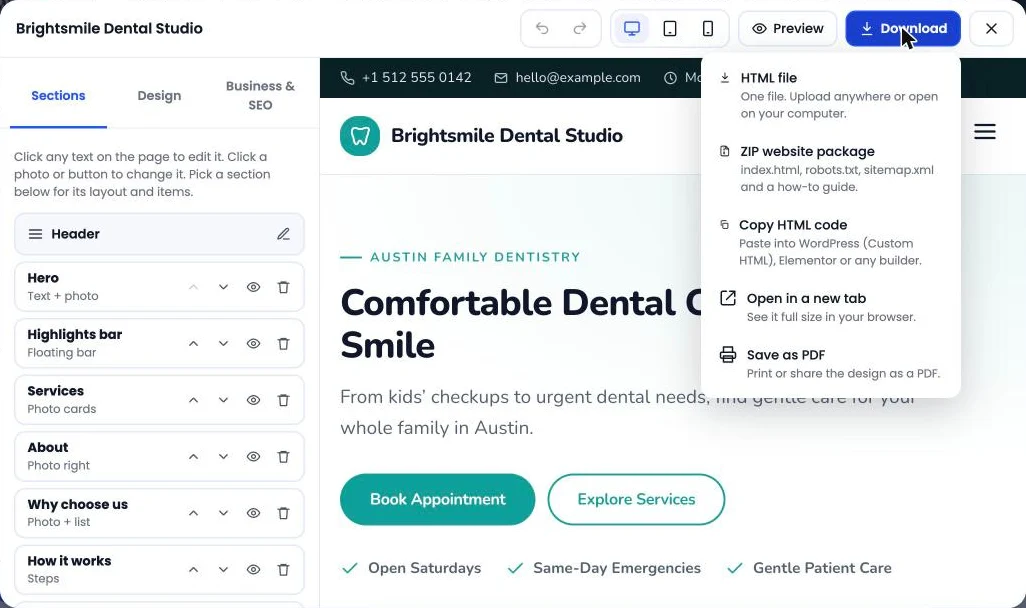
Step 7: Download your website
Click Download and choose a format:
| Option | What you get | Use it for |
|---|---|---|
| HTML file | One file with your whole website | Uploading anywhere, including GitHub Pages |
| ZIP website package | index.html, robots.txt, sitemap.xml and a how-to guide | Publishing on your own domain with SEO files ready |
| Copy HTML code | The code on your clipboard | Pasting into WordPress (Custom HTML), Elementor or GitHub |
| Open in a new tab | The full page in your browser | A final check before publishing |
| Save as PDF | A printable copy of the design | Sharing the design for approval |
Live Demo Websites Made with This Guide
Both demos were made with the steps above and are hosted free on GitHub Pages. The businesses, phone numbers and addresses are fictional.
How to Publish Your AI Website for Free
Your website is a single HTML file, so it works on almost any host. Here are the most common choices:
| Where | Cost | How |
|---|---|---|
| GitHub Pages | Free, with free SSL | Upload index.html to a public repository and turn on Pages. Full guide. |
| Netlify Drop | Free plan | Drag your unzipped folder onto the Netlify Drop page. |
| Your own hosting | Your hosting plan | Upload the ZIP files to public_html with your host’s file manager. |
| WordPress | Your existing site | Use Copy HTML code and paste it into a Custom HTML block or an Elementor HTML widget. |
How to Get Your AI Website on Google
Every generated page already has a title, meta description, social sharing tags, local business schema and fast, mobile-friendly code. After you publish, do these five things:
- Add your canonical link. In index.html, replace
your-domain.comin the commented canonical line with your real address and remove the comment marks. - Update robots.txt and sitemap.xml from the ZIP with your real domain.
- Submit your sitemap in Google Search Console.
- Create or update your Google Business Profile and add your website link.
- Replace every placeholder, such as prices and reviews, with real information.
Want AI assistants like ChatGPT and Gemini to recommend you too? Read how to get your website found in AI search.
What Can You Build with a Free AI Website Builder?
- Local businesses: clinics, salons, gyms, restaurants, cafes, plumbers and cleaners.
- Freelancers and coaches: a personal service page with a booking form.
- Ad landing pages: one offer, one form, for Google or Meta ads.
- Link-in-bio pages: one link for Instagram or WhatsApp with everything you offer.
- Testing an idea: launch a page before spending money on a full website.
Common Mistakes to Avoid
- Too many goals. One main button gets more clicks than five.
- Vague text. Edit anything generic and add real prices, areas and opening hours.
- Fake reviews. Review sections start as placeholders. Replace them with real customer reviews or hide the section.
- Skipping mobile. Check every section in the mobile preview before you publish.
- Forgetting the form. Send yourself a test enquiry after publishing to check it reaches you.
Frequently Asked Questions
Can I really build a website with AI for free?
Yes. Teasoft’s AI Website Builder is free, with no sign-up and no watermark. You describe your business in four steps and the AI creates a complete landing page or one-page website that you can edit and download. You can then host it free on GitHub Pages.
How long does it take to make a website with AI?
Filling in the four steps takes 2 to 4 minutes, and generating the page usually takes 10 to 60 seconds. Most people have a finished, edited page in under 15 minutes.
Do I need coding skills?
No. You fill in a form, then click text and photos to edit them. The builder writes all the code for you. You only see code if you choose Copy HTML code.
What is the difference between a landing page and a one-page website?
A landing page focuses on one goal, such as getting enquiries from ads, and puts the form at the top. A one-page website introduces your whole business, with services, about, gallery, FAQ and a contact form lower down.
Can I edit the website after it is generated?
Yes. Click any text or photo to change it, move, add, hide or delete sections, switch layouts, change colours and fonts, and update contact details and SEO settings. Your latest page is saved in your browser so you can come back to it with Open last page.
Where do enquiries from the form go?
By default, the form opens WhatsApp or email with the visitor’s details already filled in, so enquiries reach you directly with no extra setup.
Can I use my own domain name?
Yes. Download the HTML or ZIP and publish it on any host, then connect your domain. On GitHub Pages you can start with a free github.io address and add your own domain later.
Is the AI-generated website good for SEO?
Yes. Each page has a title, meta description, headings, image alt text, local business schema and fast, mobile-friendly code. After publishing, add your canonical link, submit your sitemap in Google Search Console and add the website to your Google Business Profile.
Are the photos free to use?
The builder uses free stock photos from Pixabay, Openverse and Wikimedia Commons. Pixabay photos show a small credit, which you can keep or replace with your own photos. Your own photos usually work best.
Next Step: Publish It for Free
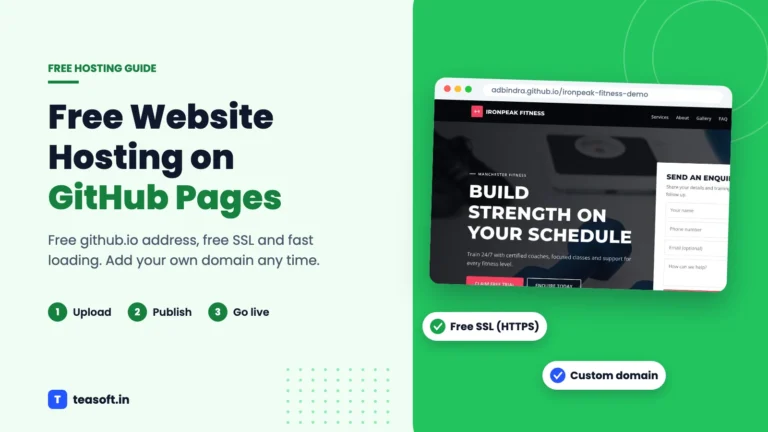
Your website is ready, so put it online. Follow our step-by-step guide to host your website free on GitHub Pages with a free github.io address, free SSL and the option to add your own domain.
Build your free website now
Describe your business, pick a design and get a complete landing page or one-page website in about a minute. Free, no sign-up.