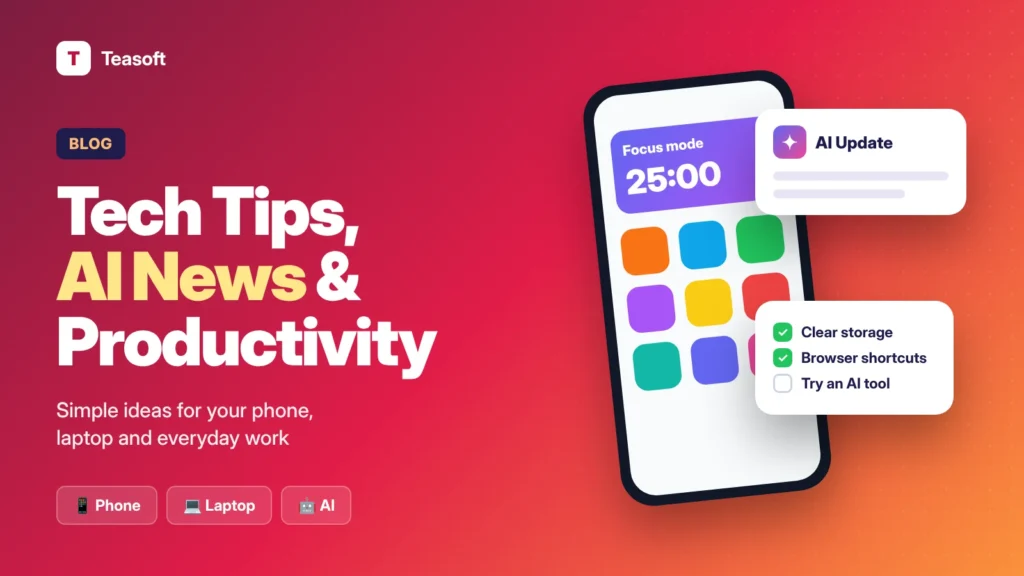
The most useful tech tips for everyday life are simple: use keyboard shortcuts like Ctrl+Shift+T to reopen closed tabs, turn on clipboard history, restart your devices weekly, use AI assistants with clear prompts but check their sources, silence non-essential notifications and protect every account with a unique password and two-step verification. Below are 25 practical tech tips, AI updates and productivity ideas in 6 groups, each explained in plain English, with free Teasoft tools where they help.
Technology changes every week, but most of it doesn’t change your day. What does help is a small set of habits, shortcuts and tools that save you a few minutes, again and again.
We picked the tech tips, AI news and productivity ideas that matter most for students, creators, professionals and small businesses. Each one takes less than five minutes to try, and none of them needs paid software.

Everyday Tech Tips for Your Phone & Laptop
Small shortcuts and settings that make your devices faster and easier to use.
1Take a Screenshot of Just What You Need
Faster than cropping later
On Windows, press Windows + Shift + S to select any part of the screen. On a Mac, press Cmd + Shift + 4 and drag over the area you want. The image is ready to paste or save straight away.
Best for: Sharing errors, receipts and quick notes with others
2Turn On Clipboard History
Paste anything you copied earlier
On Windows, press Windows + V and switch on clipboard history. From then on, you can paste any of your recent copies, not just the last one. On a Mac, apps like Raycast or Maccy add the same feature for free.
Best for: Anyone who copies and pastes between documents all day
3Restart Your Devices Once a Week
The simplest fix for a slow device
A restart clears memory, closes stuck background apps and finishes pending updates. If your phone or laptop feels slow, restart it before you try anything else. It fixes more problems than most settings.
Best for: Slow phones, laggy laptops and apps that keep freezing
4Set Up Find My Device Before You Need It
Locate, lock or erase a lost phone
Make sure Find My Device (Android) or Find My (iPhone) is switched on in your settings. If your phone is ever lost or stolen, you can see where it is, make it ring, lock it or erase it from any browser.
Best for: Every phone owner, especially before travelling
Visit Google Find My Device →google.com/android/find5Clear Storage Without Losing What Matters
Find the files taking up space
Open your phone’s storage settings to see which apps use the most space. Chat apps are often the biggest. In WhatsApp, go to Settings → Storage and data → Manage storage to delete large videos and forwarded files you no longer need.
Best for: “Storage full” warnings and phones that won’t update
Browser & Internet Tips
You spend hours in your browser every day. These tips make that time faster.
6Reopen a Tab You Closed by Mistake
One shortcut, works in every browser
Press Ctrl + Shift + T on Windows or Cmd + Shift + T on a Mac to bring back the last tab you closed. Press it again to reopen the ones before it.
Best for: Everyone who has ever closed the wrong tab
7Search Google Like a Pro
Three tricks that find answers faster
Put a phrase in “quotes” to find those exact words. Add site: to search inside one website, like site:teasoft.in pdf. Put a minus sign before a word to leave it out of the results.
Best for: Research, homework and finding old articles
8Pin the Tabs You Use Every Day
Keep email and calendar one click away
Right-click any tab and choose Pin. Pinned tabs shrink to an icon, stay on the left and open automatically when you start your browser, so your most-used sites are always ready.
Best for: Email, calendar, chat and work dashboards
9Use Reading Mode for Cluttered Pages
Remove ads and pop-ups from articles
In Chrome, right-click a page and choose Open in reading mode. In Safari, click the Reader icon in the address bar. You get clean text, adjustable font size and no distractions.
Best for: Long articles, recipes and news sites full of ads

AI News and Changes Worth Knowing
You don’t need to follow every AI headline. These are the changes that affect how you search, work and stay safe.
10AI Answers Now Sit on Top of Search
Google, ChatGPT and Perplexity answer directly
Google now shows AI-written summaries above many results, and more people ask ChatGPT, Gemini or Perplexity instead of searching. These answers are quick, but they can be wrong, so click the cited sources for anything important. If you run a website, learn how to get found in AI search.
Best for: Anyone who searches online, and every website owner
11AI Assistants Are Moving From Answering to Doing
The rise of AI agents
The newest AI tools don’t just reply. They can browse websites, fill in forms, compare options and finish multi-step tasks for you. Use them for low-risk jobs first and always review the result before anything is sent or paid for. See our AI trends for 2027 for what’s coming next.
Best for: Busy professionals and small business owners
12AI Is Already Built Into Your Apps
No new app needed
Gemini is built into Android and Google apps, Apple Intelligence is on newer iPhones and Macs, and Copilot is in Windows and Microsoft 365. Before you sign up for a new AI tool, check what your phone, email and office apps can already do.
Best for: Summarising emails, rewriting text and quick answers
13Watch Out for AI Voice and Video Scams
Deepfakes are cheap and convincing
Scammers can now copy a voice from a short clip and make fake video calls. If a “family member” or “boss” urgently asks for money or codes, hang up and call them back on a number you know. Agree on a family safe word that only you know.
Best for: Parents, older relatives and anyone who handles payments
Smart Ways to Use AI Every Day
Get better answers from AI tools in less time, without paying for anything.

14Give AI Context, a Role and a Format
Better prompts, better answers
Instead of “write an email”, try “You are a polite office manager. Write a short email to a client explaining a 2-day delay. Use 3 short paragraphs.” Who, what and how long makes every answer more useful. Grab 100+ ready prompts in our ChatGPT cheat sheet.
Best for: Emails, reports, social posts and study notes
Get the ChatGPT Cheat Sheet →teasoft.in/resources/chatgpt-cheat-sheet15Ask AI to Explain Things Simply
Turn hard topics into plain English
Paste a confusing paragraph and ask, “Explain this like I’m new to the topic, in 5 bullet points.” It works for contracts, research papers, tax rules and code. Just don’t paste passwords, ID numbers or private company data.
Best for: Students, new employees and learning new skills
16Always Check AI Answers
AI can sound sure and still be wrong
Ask the AI to list its sources, then open them. Double-check numbers, dates, prices, laws and medical advice before you use them. Treat AI as a fast first draft, not the final word.
Best for: Research, school work and anything you’ll publish
17Use the Right Free AI Tool for the Job
One tool doesn’t do everything well
Some AI tools are best for writing, others for images, research, meetings or presentations. Most have generous free plans. Our list of the best free AI tools matches each task to the right tool.
Best for: Trying AI without paying for a subscription
See the Best Free AI Tools →teasoft.in/blog/best-free-ai-toolsSimple Productivity Ideas That Work
Small changes that give you back time every day.
18Use the Two-Minute Rule
Stop small tasks from piling up
If something takes less than two minutes, such as replying to a message, filing a document or paying a bill, do it now. Everything bigger goes on your to-do list with a time to do it.
Best for: Busy inboxes and endless to-do lists
19Turn Off Notifications You Don’t Need
Protect your focus
Go through your notification settings and switch off everything that isn’t from a real person or truly urgent. Use Focus modes on iPhone or Android during work and study time, and check other apps on your own schedule.
Best for: Deep work, studying and better sleep
20Create Text Shortcuts for Things You Type Often
Type three letters, get a full sentence
On iPhone, go to Settings → General → Keyboard → Text Replacement. On Android, use your keyboard’s dictionary or clipboard settings. Set short codes for your email address, home address and common replies.
Best for: Forms, customer replies and repeated messages
21Teasoft Convert CaseTeasoft tool
Fix text formatting in one click
Typed a whole paragraph in CAPS or need a proper headline? Paste your text to switch to Title Case, Sentence case and more, instantly and for free.
Best for: Writers, students and social media managers
Visit Convert Case →teasoft.in/convert-case22Teasoft PDF ToolsTeasoft tool
Handle PDFs without paid software
Most PDF jobs take seconds with the right tool: merge PDFs, compress PDFs for email limits, convert PDF to Word or sign a PDF. No sign-up and no watermarks.
Best for: Forms, applications, invoices and assignments
Visit PDF Tools →teasoft.in/pdfOnline Safety Tips Everyone Should Follow
Three habits that stop most account hacks before they start.

23Use a Unique Password for Every AccountTeasoft tool
One leak shouldn’t unlock everything
Reusing passwords is the most common way accounts get hacked. Create a long, random password for each site with our free password generator and save them in a password manager, so you only need to remember one.
Best for: Email, banking, shopping and social media accounts
Visit Password Generator →teasoft.in/random-generator/password-generator24Turn On Two-Step Verification
A second lock on your accounts
Two-step verification asks for a code or a tap on your phone when you sign in from a new device. Even if someone steals your password, they can’t get in. Turn it on for your email first, because it can reset everything else.
Best for: Email, WhatsApp, banking and cloud storage
25Check If Your Email Was Leaked
Find out in ten seconds
Enter your email on Have I Been Pwned to see if it appeared in a known data breach. If it did, change that password straight away and anywhere else you used it.
Best for: A quick yearly security check-up
Visit Have I Been Pwned →haveibeenpwned.comAll 25 Tech Tips and Ideas at a Glance
Here’s the full list in one place. Bookmark this page or share it with someone who’d find it useful.
| # | Tip | Why it helps | Category |
|---|---|---|---|
| 1 | Take a screenshot of just what you need | Share exactly what matters | Phone & Laptop |
| 2 | Turn on clipboard history | Paste anything you copied earlier | Phone & Laptop |
| 3 | Restart your devices once a week | Fixes most slowdowns | Phone & Laptop |
| 4 | Set up Find My Device | Locate or lock a lost phone | Phone & Laptop |
| 5 | Clear storage the smart way | Free space without losing files | Phone & Laptop |
| 6 | Reopen a closed tab | Ctrl/Cmd + Shift + T | Browser & Internet |
| 7 | Search Google like a pro | Quotes, site: and minus | Browser & Internet |
| 8 | Pin the tabs you use daily | Key sites always open | Browser & Internet |
| 9 | Use reading mode | Read without ads and clutter | Browser & Internet |
| 10 | AI answers on top of search | Check the cited sources | AI News |
| 11 | AI assistants that do tasks | Review before it sends or pays | AI News |
| 12 | AI built into your apps | No new app needed | AI News |
| 13 | AI voice and video scams | Call back and use a safe word | AI News |
| 14 | Give AI context, role and format | Much better answers | Using AI |
| 15 | Ask AI to explain simply | Learn hard topics fast | Using AI |
| 16 | Always check AI answers | Avoid confident mistakes | Using AI |
| 17 | Use the right free AI tool | Best tool for each task | Using AI |
| 18 | Use the two-minute rule | Stop small tasks piling up | Productivity |
| 19 | Turn off notifications you don’t need | Protect your focus | Productivity |
| 20 | Create text shortcuts | Type less, do more | Productivity |
| 21 | Teasoft Convert Case | Fix text case in one click | Productivity |
| 22 | Teasoft PDF Tools | Free PDF merge, compress and sign | Productivity |
| 23 | Use a unique password for every account | Stop one leak spreading | Online Safety |
| 24 | Turn on two-step verification | A second lock on accounts | Online Safety |
| 25 | Check if your email was leaked | Act fast after a breach | Online Safety |
How to Keep Up With Tech Without Feeling Overwhelmed
You don’t need to read every headline. A few simple habits are enough:
- Learn one new tip a week. Try it for a few days until it becomes a habit, then pick the next one.
- Follow the changes, not the hype. Ask, “Does this change how I work, search or stay safe?” If not, skip it.
- Update your devices and apps. Updates fix security holes and often add the new features you read about.
- Try before you buy. Most AI and productivity tools have free plans. Use them for a week before paying.
- Bookmark trusted sources. Come back to sites that explain things clearly and update their articles when facts change.
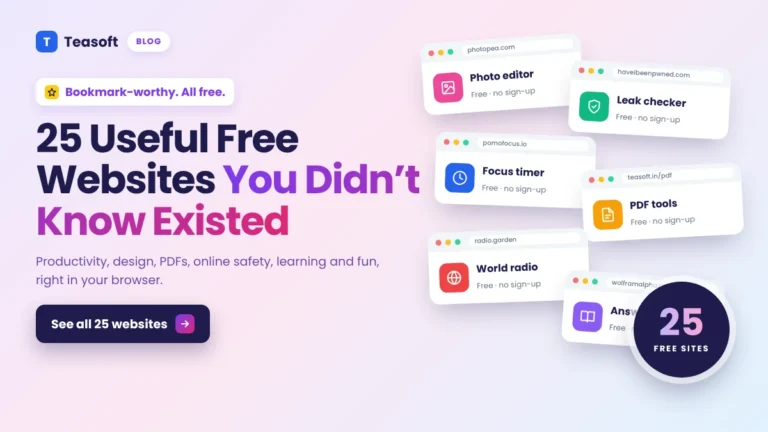
Want more? See our list of 25 useful free websites and our free AI search optimization checklist.
Frequently Asked Questions
What are the most useful tech tips for everyday life?
The most useful everyday tech tips are reopening closed tabs with Ctrl+Shift+T, turning on clipboard history, restarting devices weekly, setting up Find My Device, silencing non-essential notifications, and using a unique password with two-step verification on every important account.
What is the latest AI news that affects everyday users?
The biggest AI changes for everyday users are AI-written answers at the top of Google and other search tools, AI assistants that can complete tasks for you, AI features built into phones and office apps, and a rise in AI voice and video scams.
How can I use AI to be more productive?
Give the AI context, a role and the format you want, ask it to explain hard topics simply, use it for first drafts and summaries, and always check facts, numbers and sources before you use the answer.
What are some simple productivity ideas I can start today?
Use the two-minute rule for small tasks, turn off notifications you don’t need, create text shortcuts for things you type often, and use free online tools for PDFs and text formatting instead of doing them by hand.
How can I protect myself from AI scams?
If someone calls or video calls asking urgently for money or codes, hang up and call them back on a number you already know. Agree on a family safe word, and never share one-time passwords with anyone.
Are the tools in this article free?
Yes. Every tip in this article can be used for free. The Teasoft tools mentioned, such as PDF Tools, Convert Case and the Password Generator, are free, need no sign-up and add no watermarks.
Final Takeaway: Small Changes, Big Time Savings
Everyday digital life gets easier when you know a few good shortcuts, use AI carefully and protect your accounts. None of these tips needs expensive software or technical skills.
Pick three tips from this list and try them this week. Then share the page with a friend, parent or colleague who’d find it useful.
Try Teasoft’s free online tools
Free tools for text, images, PDFs and code that work right in your browser. No sign-up, no watermarks.