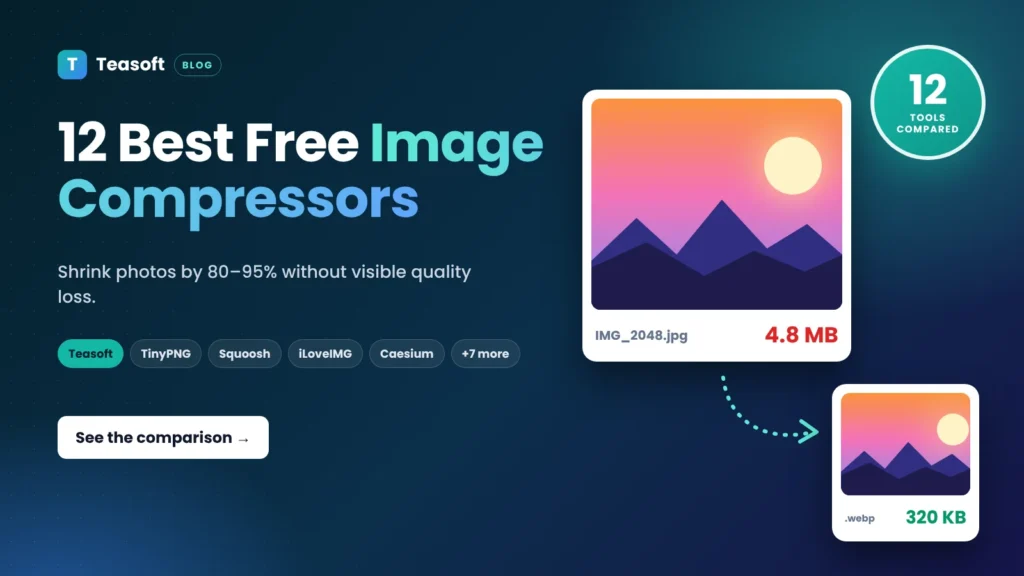
The best free image compressors are Teasoft Image Compressor (private, in-browser, 50 files at once), TinyPNG (great PNG results, 20 images up to 5 MB), Squoosh (best quality control), and Teasoft Compress Image to KB for forms that need an exact size like 20 KB or 50 KB. For offline use, try Caesium on Windows or ImageOptim on Mac, and for WordPress sites, ShortPixel or Imagify.
Big images slow down websites, fill up your phone and get rejected by online forms. A good image compressor can make a photo 80–95% smaller without any difference you can see, but free tools vary a lot in limits, privacy and quality.
We compared 12 free image compressors, including four tools we built at Teasoft. To keep it fair, our own tools are clearly labelled, and we list their cons too. Use the table for a quick answer, or read on for details. Last updated: November 2026.
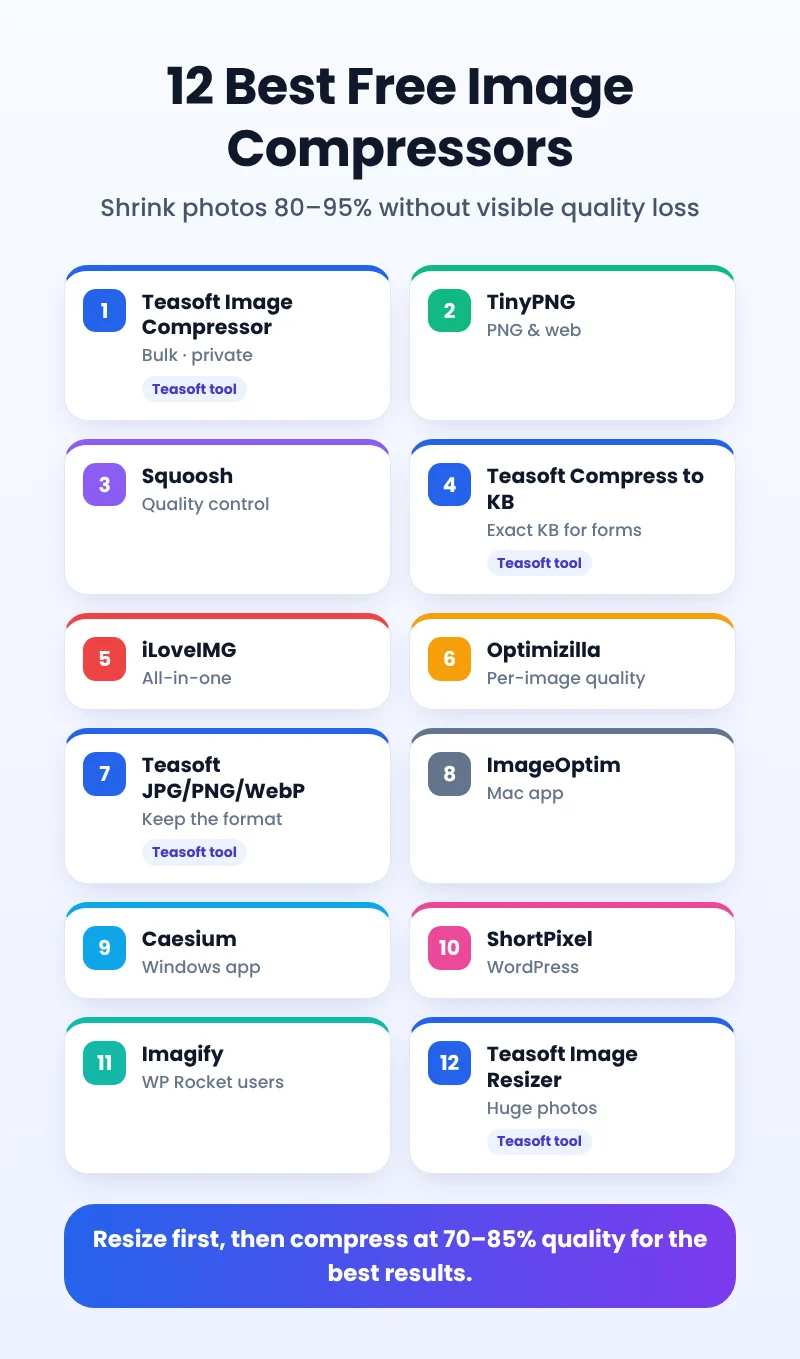
Best Free Image Compressors Compared
Here’s how all 12 tools compare on what matters most: what they’re best for, how much you can compress for free and where your files go. ⭐ marks Teasoft tools.
| # | Tool | Best for | Free limit | Where files go |
|---|---|---|---|---|
| 1 | Teasoft Image Compressor ⭐ | Bulk, privacy | 50 files, 100 MB each | In your browser |
| 2 | TinyPNG | PNG and web images | 20 images, 5 MB each | Uploaded |
| 3 | Squoosh | Quality control | Unlimited, 1 at a time | In your browser |
| 4 | Teasoft Compress to KB ⭐ | Exact KB for forms | 50 files, any target KB | In your browser |
| 5 | iLoveIMG | All-in-one toolkit | Batch, daily task limit | Uploaded |
| 6 | Optimizilla | Per-image quality | 20 images per session | Online |
| 7 | Teasoft JPG/PNG/WebP ⭐ | Keeping the format | Batch, no limit | In your browser |
| 8 | ImageOptim | Mac users | Unlimited | On your Mac |
| 9 | Caesium | Windows, big folders | Unlimited | On your computer |
| 10 | ShortPixel | WordPress sites | Monthly quota | Its servers |
| 11 | Imagify | WP Rocket users | Small monthly quota | Its servers |
| 12 | Teasoft Image Resizer ⭐ | Huge photos | Batch, no limit | In your browser |
How We Picked the Best Free Image Compressors
We compared every tool using its own website and recent independent comparisons, and tested our own tools on real phone photos. We looked at:
- Really free: a useful free plan with no watermark and no forced sign-up for basic use.
- Quality vs size: how much smaller files get before you can see a difference.
- Limits: number of files, maximum file size and daily or monthly quotas.
- Privacy: whether images are uploaded to a server or processed on your device.
- Ease of use: how quickly a beginner can get a good result.
Free plans change often, so we re-check limits regularly. Always confirm the current limits on each tool’s website.
1. Teasoft Image Compressor: Best Free Image Compressor for Privacy and Bulk
Teasoft’s Image Compressor is our own free tool, so we’ll be upfront: we built it to fix what annoyed us about other compressors. It runs entirely in your browser, so your photos are never uploaded to a server, and it handles large batches without a daily limit.
What you get free: up to 50 images at once, each up to 100 MB, with a quality slider (70% by default), output as the same format, JPG, PNG or WebP, an optional maximum width, and one-click ZIP download. JPG, PNG, WebP, GIF, BMP and AVIF files are supported.
- Files never leave your device
- 50 files per batch, 100 MB each
- Converts to WebP while compressing
- No side-by-side preview slider yet
- Newer and less known than TinyPNG
2. TinyPNG: Best Free Image Compressor for PNG and Web Images
TinyPNG is the best-known online image compressor and still one of the best. Its smart lossy compression cuts PNG and JPG files a lot while keeping them sharp, and the panda mascot has made it a favourite of designers and developers for years.
What you get free: up to 20 images at a time, each up to 5 MB, with support for AVIF, WebP, PNG and JPEG. No account is needed for basic compression.
- Excellent results on PNG files
- Very simple drag-and-drop
- Trusted by web developers
- 5 MB size limit per image on the free plan
- Files are uploaded to TinyPNG’s servers
- No quality control
3. Squoosh: Best Free Image Compressor for Quality Control
Squoosh is a free, open-source image compressor made by Google Chrome developers. Its standout feature is a side-by-side slider that shows the original and compressed image together, so you can see exactly how much quality you lose.
What you get free: everything. There are no accounts or limits, images are processed locally in your browser, and you get advanced codecs such as WebP, AVIF and MozJPEG with fine control over settings.
- Live before/after comparison
- Processes images in your browser
- Advanced formats like AVIF
- One image at a time, no batch
- Too many settings for beginners
4. Teasoft Compress Image to KB: Best Free Tool to Compress Images to an Exact KB Size
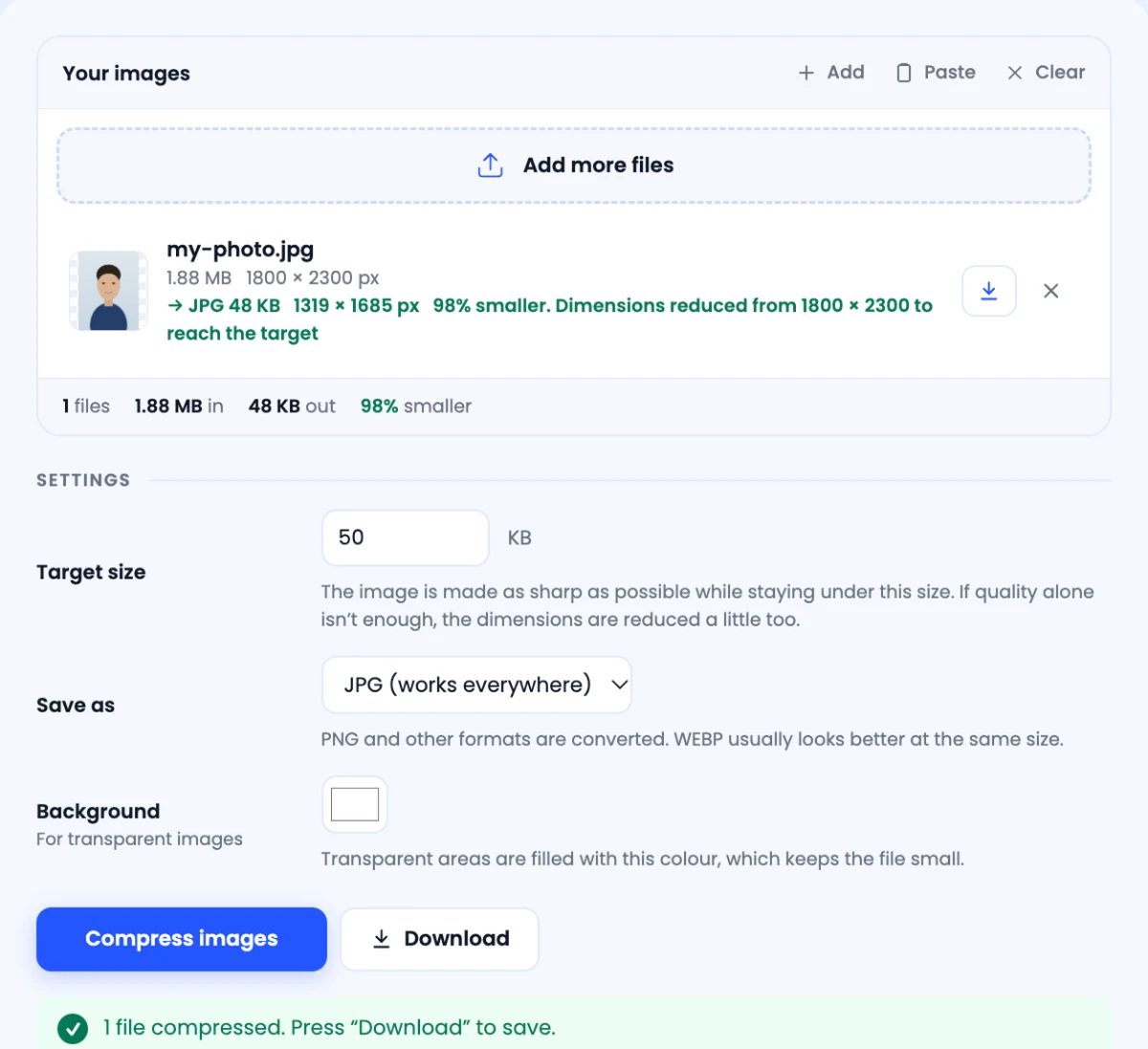
Most compressors make an image “smaller”, but online forms need something more specific: under 50 KB, or between 20 and 50 KB. Teasoft’s Compress Image to KB tools let you type the target size and do the rest, which is why we built them.
What you get free: ready-made versions for 20 KB, 50 KB, 100 KB and 200 KB, where you can also type any target size. It keeps the image as sharp as possible and reduces the dimensions slightly only if it has to. Up to 50 files at once, processed in your browser.
- Hits an exact KB target
- Made for exam, job and government forms
- Signatures under 20 KB in one click
- Not built for fine quality tuning
- JPG or WebP output only
5. iLoveIMG: Best Free Image Compressor for an All-in-One Toolkit
iLoveIMG is a popular all-in-one image website from the team behind iLovePDF. Alongside compression it offers resizing, cropping, converting, watermarking and more, so it’s handy if you need several edits in one place.
What you get free: batch compression with large file sizes on the Basic plan, plus a daily limit on tasks and on extra AI tools. An account unlocks more.
- Many image tools in one place
- Handles large files
- Batch compression
- Files are uploaded to its servers
- Daily task limits on the free plan
6. Optimizilla (ImageCompressor.com): Best Free Image Compressor for Per-Image Quality
Optimizilla, now at ImageCompressor.com, is a simple online compressor for JPG and PNG files. Its best feature is a quality slider with a preview for each image in a batch, so you can fine-tune them one by one.
What you get free: up to 20 images per session with an adjustable quality slider and preview for each file.
- Quality slider for every image
- Preview before you download
- No sign-up
- Built mainly for JPG and PNG
- Few settings beyond quality
- Interface feels dated
7. Teasoft Compress JPG, PNG and WebP: Best Free Format-Specific Compressors
Sometimes you need to keep the exact format, such as a PNG logo with transparency or a JPG for a portal that rejects WebP. Teasoft has dedicated compressors for each format with settings tuned for it.
What you get free: Compress JPG, Compress PNG and Compress WebP, each free, private and batch-ready, with no watermark.
- Keeps the original format
- Transparency safe for PNG
- Batch and in-browser
- Use the main compressor if you want to switch formats
8. ImageOptim: Best Free Image Compressor App for Mac
ImageOptim is a free, open-source Mac app. Drag images onto the window and it squeezes out extra bytes, removes hidden metadata such as GPS location, and saves the files in place.
What you get free: the full Mac app. Its online API for developers is a separate paid service.
- Works offline
- Removes private metadata
- Drag-and-drop simple
- Mac only
- Lossless by default, so savings can be smaller
9. Caesium Image Compressor: Best Free Image Compressor App for Windows
Caesium is a free, open-source desktop app for Windows, Mac and Linux. It’s ideal for compressing large folders of photos offline, with lossy and lossless modes and options to resize and keep folder structure.
What you get free: everything. There are no limits because it runs on your own computer.
- Works offline on Windows, Mac and Linux
- Great for thousands of photos
- Lossy and lossless options
- Needs to be installed
- Interface takes a few minutes to learn
10. ShortPixel: Best Free Image Compressor Plugin for WordPress
ShortPixel is a WordPress plugin that compresses images automatically when you upload them to your media library, and can convert them to WebP or AVIF for faster pages.
What you get free: a free plan with a monthly quota of image optimisations. Unlimited and one-time credit plans are available if you need more.
- Automatic on upload
- WebP and AVIF delivery
- Bulk-optimises existing images
- Free quota runs out fast on big sites
- Images are processed on its servers
11. Imagify: Best Free Image Compressor Plugin for WP Rocket Users
Imagify comes from the same company as the WP Rocket caching plugin, so the two work well together. It compresses images on upload and can serve WebP or AVIF versions automatically.
What you get free: a small monthly quota on the free plan, which suits small blogs that add a few images a week.
- Made by the WP Rocket team
- Simple compression levels
- Next-gen formats
- Free quota is small
- Server-side processing
12. Teasoft Image Resizer: Best Free Tool to Shrink Huge Photos Before Compressing
The fastest way to make a 5 MB phone photo small is to resize it. A 4000-pixel-wide photo shown at 1200 pixels on a website is wasting most of its file size. Teasoft’s Image Resizer fixes that in seconds.
What you get free: resizing by pixels or percent, keep proportions, don’t-enlarge protection, JPG/PNG/WebP output with a quality setting, and batch processing in your browser.
- Biggest size savings for large photos
- Exact pixel sizes for forms
- Batch and private
- Doesn’t target a KB size by itself
Which Free Image Compressor Should You Use?
Match your task to the right tool:

- Exam, job or government form with a KB limit: Teasoft Compress Image to KB
- Lots of photos you want to keep private: Teasoft Image Compressor or Caesium
- PNG graphics and logos for a website: TinyPNG or Teasoft Compress PNG
- Getting the best quality on one important image: Squoosh
- A WordPress website: ShortPixel or Imagify, plus compressing big photos before upload
- Huge phone photos: Teasoft Image Resizer first, then any compressor
Online, In-Browser or Desktop: What’s the Difference?
- Online (uploaded): your images are sent to the company’s servers, compressed there and sent back. Convenient, but not ideal for ID cards, signatures or private photos.
- In-browser: the website does the work on your own device, so files never leave it. Teasoft’s tools and Squoosh work this way.
- Desktop apps: installed programs like Caesium and ImageOptim work fully offline and are best for very large folders.
How to Compress Images Without Losing Quality
- Resize first. Make the image no wider than where it will be shown, such as 1200–1600 px for most websites.
- Pick the right format. WebP for websites, JPG for photos and forms, PNG only for graphics with transparency.
- Use 70–85% quality. Below about 60%, artifacts start to show on photos.
- Compress from the original. Compressing an already compressed image again makes it blurry faster.
- Check the result at 100% zoom on faces, text and edges before you publish or upload.
Frequently Asked Questions
What is the best free image compressor?
For most people, the best free image compressors are Teasoft Image Compressor for private bulk compression in the browser, TinyPNG for PNG and web images, and Squoosh for comparing quality on a single image. For online forms that need an exact size like 50 KB, use Teasoft Compress Image to KB.
How can I compress an image without losing quality?
Resize the image to the size you actually need, then compress at 70–85% quality, and use WebP for websites. At these settings most people cannot see any difference, while the file is often 80–95% smaller.
Is TinyPNG free?
Yes. TinyPNG’s free web version compresses up to 20 images at a time, each up to 5 MB. Paid Web Pro and Web Ultra plans raise the limits.
Which image compressor does not upload my photos?
Teasoft Image Compressor and Squoosh process images in your browser, so files are not uploaded to a server. Desktop apps like Caesium and ImageOptim also work offline on your own computer.
How do I compress an image to 50 KB or 20 KB?
Use Teasoft’s Compress Image to 50KB or Compress Image to 20KB, add your image, keep the target size, choose JPG and click Compress images. The tool keeps the image as sharp as possible while staying under the limit.
What is the best format for small image files?
WebP usually gives the smallest files at good quality for websites. Use JPG for photos when a form or portal does not accept WebP, and PNG only when you need sharp graphics or transparency.
Final Verdict: The Best Free Image Compressors to Start With
If you only bookmark three, make them Teasoft Image Compressor for private bulk compression, TinyPNG for PNG graphics and Squoosh for fine-tuning one image. For online forms, Teasoft Compress Image to KB saves you the guesswork.
Every tool here is free to start, so try two or three on your own images and keep the one that fits how you work. Know a great free compressor we missed? Share this list and tell us.
Compress your images now, free
Private, in-browser image tools with no sign-up and no watermark. Up to 50 files at once.