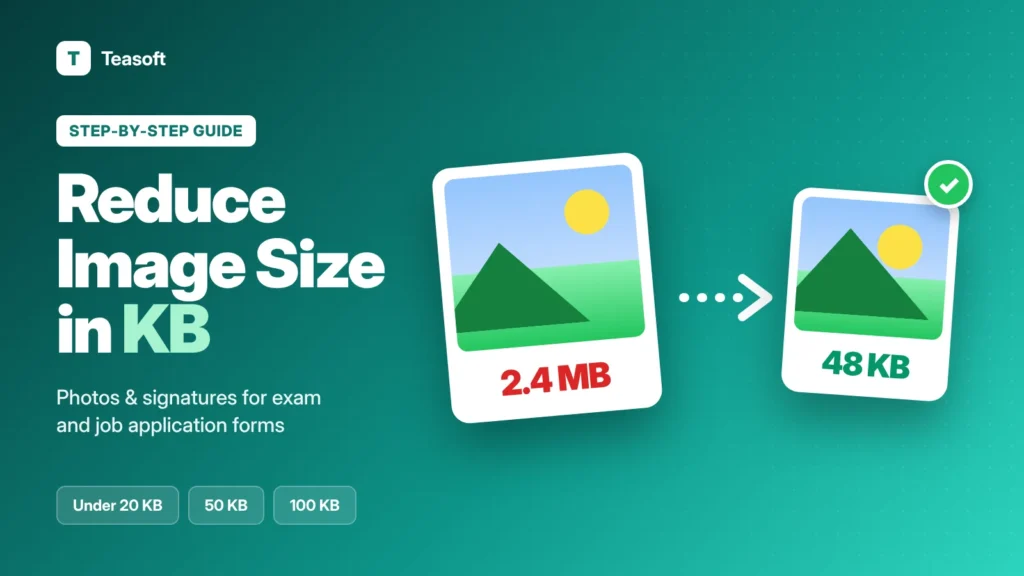
To reduce image size in KB for an online form, open a free tool like Teasoft’s Compress Image to 50KB, add your photo, type your form’s limit in Target size (for example 50 KB), choose JPG and click Compress images. Then download the file and upload it. Use 20 KB for signatures, 50 KB for most exam and job photos and 100 KB for ID photos or declarations. If the form also asks for exact pixels, crop and resize first, then compress.
“File size should be between 20 KB and 50 KB.” If you’ve ever filled an exam, job or government form online, you’ve probably seen a message like this. Phone photos are usually 2–5 MB, which is 50 to 100 times too big, so the upload fails.
The good news: you don’t need Photoshop or a cyber café. In this guide you’ll learn the common KB limits for photos, signatures and documents, how to reduce image size in KB step by step with a free tool, how to hit exact pixel sizes like 200 × 230, and how to fix the most common upload errors.
Common Image Size Limits for Online Forms
Every form sets its own rules, but most Indian exam, job, bank and government portals use similar limits. Here’s what you’ll usually be asked for:

| Upload | Typical file size | Typical pixel size | Free tool |
|---|---|---|---|
| Signature | 10–20 KB | 140 × 60 px | Compress Image to 20KB |
| Passport-size photo | 20–50 KB | 200 × 230 px | Compress Image to 50KB |
| Left thumb impression | 20–50 KB | 240 × 240 px | Compress Image to 50KB |
| Handwritten declaration | 50–100 KB | 800 × 400 px | Compress Image to 100KB |
| Scanned certificate or ID | 100–200 KB or more | Varies | Compress Image to 200KB |
The photo, signature, thumb and declaration sizes above are taken from a recent bank recruitment notice and match what most bank exam forms ask for. SSC forms ask for a 10–20 KB JPG signature but now capture your photo live through a webcam or phone camera, so you don’t upload one.
What You Need to Reduce Image Size in KB
- Your original photo or scan. Use the clearest version you have, not a copy sent through WhatsApp.
- Your form’s size rules. Note the KB range, the pixel size (if any) and the file format, usually JPG or JPEG.
- A free online tool. Teasoft’s image tools work on phone and computer, need no sign-up and process your files in your browser, so your photo and signature are never uploaded to a server.
KB vs Pixels: What’s the Difference?
Forms often mention two different limits, and mixing them up is the most common reason uploads fail.
- File size (KB) is how much storage the file takes. You change it by compressing. 1 MB is about 1,000 KB.
- Dimensions (pixels) are the width and height of the image, like 200 × 230 px. You change them by cropping and resizing.
- Smaller dimensions mean a smaller file, so resizing to the right pixels first makes it easier to reach a low KB limit while keeping the photo sharp.
How to Reduce Image Size in KB: Step by Step
We’ll use Teasoft’s free Compress Image to 50KB tool. The steps are the same for the 20KB, 100KB and 200KB versions.
Step 1: Open the tool and add your image
Open Compress Image to 50KB. Tap the upload box to choose your photo, drag it in, or paste it with Ctrl+V. It accepts JPG, PNG, WebP, GIF, BMP and AVIF, and you can add up to 50 images at once. If your photo is an iPhone HEIC file, convert it first with the HEIC to JPG converter.
Step 2: Set your target size and format
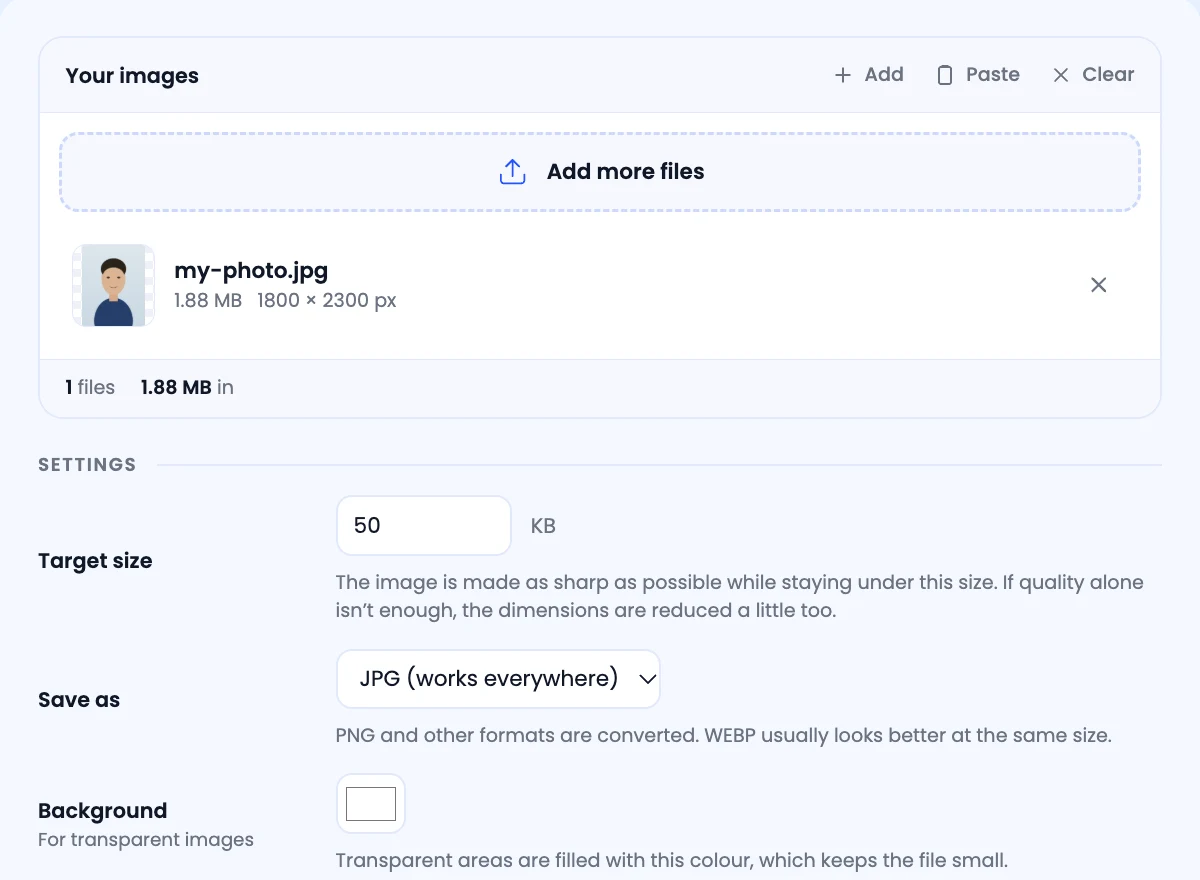
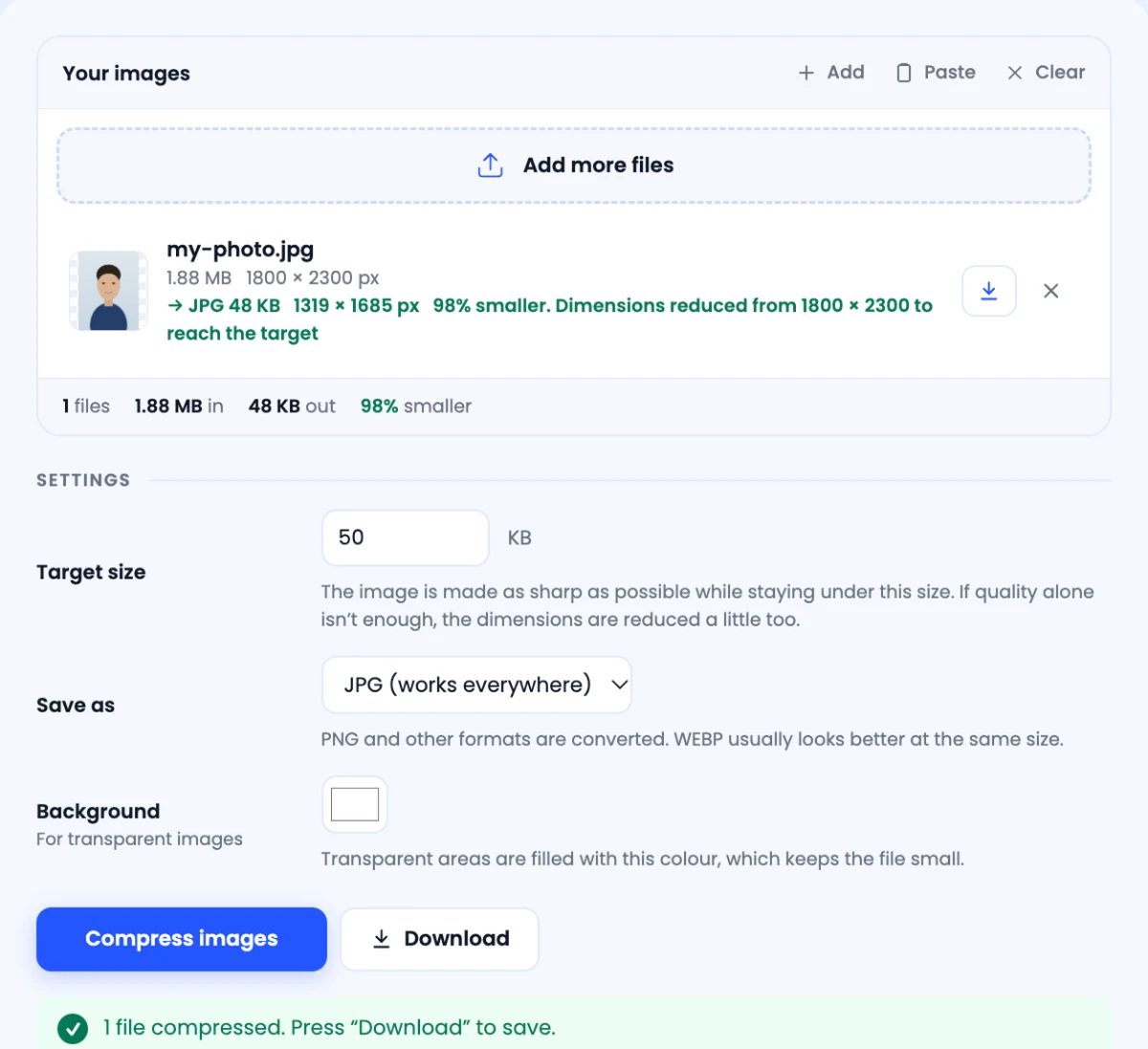
In Settings, type your form’s limit in Target size. Set it a little below the maximum, for example 45 KB for a 50 KB limit, so small differences in how websites measure KB don’t cause a rejection. Keep Save as on JPG (works everywhere), because most government portals only accept JPG or JPEG.
Step 3: Compress and check the result
Click Compress images. The tool lowers the quality only as much as needed and, if that isn’t enough, reduces the dimensions slightly. In our test, a 1.88 MB phone photo became a 48 KB JPG, 98% smaller. Check the new size shown under the file name and make sure the face still looks sharp.
Step 4: Download and upload
Click Download (or the download icon next to the file). Several files download together as a ZIP. On your phone, the file goes to your Downloads folder. Upload it to your form and check the preview before you submit.
How to Reduce Signature Size to Under 20 KB
Signatures have the strictest limits, usually 10–20 KB. Follow these steps for a clean result:
- Sign on plain white paper with a black ink pen. Blue is fine if your form allows it.
- Photograph it in daylight from directly above, with no shadows.
- Crop tightly around the signature with the Crop Image tool, leaving only a little white space.
- Resize to the pixel size your form asks for, such as 140 × 60 px, with the Image Resizer.
- Compress with Compress Image to 20KB. Set the target to 18 KB and save as JPG.
How to Resize a Photo to Exact Pixels (Like 200 × 230)
If your form asks for exact dimensions as well as a KB limit, do it in this order: crop, resize, then compress.
- Crop to the right shape. 200 × 230 is slightly taller than wide. Use Crop Image to frame your head and shoulders in that shape, so nothing gets stretched.
- Resize to the exact pixels. Open the Image Resizer, choose By pixels and enter 200 × 230. If your crop already has the right shape, keeping proportions on will give you the exact size.
- Compress to the KB limit. Finally, run it through Compress Image to 50KB. A 200 × 230 photo is small, so it will easily fit and stay sharp.
Need a passport photo with the right background and head size? Our guide on how to make a passport size photo at home covers that, and the Passport Size Photo Maker has its own Max file size option.
How to Reduce Image Size on Your Phone
You don’t need a computer. Teasoft’s image tools work in Chrome or Safari on any Android phone or iPhone:
- Open the tool in your browser and tap the upload box to pick a photo from your gallery or take a new one.
- Set the target size, tap Compress images, then tap Download.
- Find the file in your Downloads folder (Android) or the Files app (iPhone) when the form asks you to upload it.
Upload Rejected? Common Errors and How to Fix Them
If the form still won’t accept your image, the error message usually tells you what’s wrong.

- “File size too large”: lower the target size a little, such as 45 KB for a 50 KB limit.
- “File size too small”: the form has a minimum. Start again from the original and set the target near the top of the allowed range.
- “Invalid dimensions”: crop and resize to the exact pixels first, then compress.
- “Invalid file format”: convert to JPG with Images to JPG or PNG to JPG.
- Blurry result: compress from your original, not from an already compressed or forwarded copy.
Frequently Asked Questions
How do I reduce image size in KB for an online form?
Open a free tool like Teasoft’s Compress Image to 50KB, add your image, set the target size to your form’s limit (for example 45 KB for a 50 KB maximum), choose JPG and click Compress images. Then download the file and upload it to your form.
How can I reduce my photo size to under 50 KB?
Use Compress Image to 50KB, keep the target at 50 KB or set it slightly lower, save as JPG and download. In our test, a 1.88 MB phone photo became a 48 KB JPG in a few seconds.
How do I reduce my signature size to under 20 KB?
Sign in black ink on white paper, photograph it in daylight, crop tightly around the signature, resize to the pixel size your form asks for, such as 140 × 60 px, then compress it with Compress Image to 20KB.
Why does the form say my file is too small?
Many forms have a minimum file size, such as 20 KB for photos. Start again from your original image and set the target size near the top of the allowed range, such as 45 KB for a 20–50 KB range.
What is the difference between KB and pixels?
KB is the file size, which you change by compressing. Pixels are the width and height of the image, such as 200 × 230 px, which you change by cropping and resizing. Many forms check both.
Can I reduce image size in KB on my phone?
Yes. Teasoft’s image tools work in Chrome or Safari on Android and iPhone. Pick a photo from your gallery, set the target size, compress and download it to your phone.
Is it safe to compress my photo and signature online?
With Teasoft’s tools your images are processed in your browser and never uploaded to a server, which makes them a safe choice for ID photos and signatures.
Final Takeaway: The Right Size in Under a Minute
Reducing image size in KB is simple once you know your form’s limits: check the KB range and pixel size, crop and resize if needed, then compress to just under the maximum and save as JPG.
Bookmark this guide for your next application, and share it with friends filling the same form. It could save them a trip to the cyber café.
Reduce your image size now, free
Get photos, signatures and documents under 20 KB, 50 KB, 100 KB or 200 KB in your browser. No sign-up, no watermark.